WordPress robots.txt: The Complete 2026 Guide (Find It, Edit It, and Stop Blocking AI Search)
WordPress generates a robots.txt you've probably never edited, and in 2026 one stale rule in it can make you invisible to ChatGPT, Perplexity, and Gemini. Here's where the file lives, how to edit it safely, what a good one looks like, and how to audit it against every AI crawler for free.
On this page· 10 sections
Nearly every WordPress site serves a robots.txt (almost certainly yours included), even if you've never created one. WordPress generates it silently, most owners never read it, and for fifteen years that was fine, because the default did the right thing for Googlebot and nobody else mattered much.
In 2026 the stakes changed. About 30 AI crawlers (GPTBot, ClaudeBot, PerplexityBot, OAI-SearchBot, and friends) now read robots.txt before deciding whether your site can be cited in ChatGPT, Perplexity, Gemini, and Google AI Overviews. One stale Disallow rule, written years ago to swat a scraper, can make you invisible to all of it. And from the outside, being blocked looks identical to being ignored.
This guide covers the whole file: where it lives in WordPress, how to edit it safely, what a good one looks like, the classic mistakes, and the new job robots.txt has in the AI-search era, including how to audit yours against every AI crawler in about a minute with the free AuditAE plugin.
What robots.txt Actually Does (and Doesn't Do)
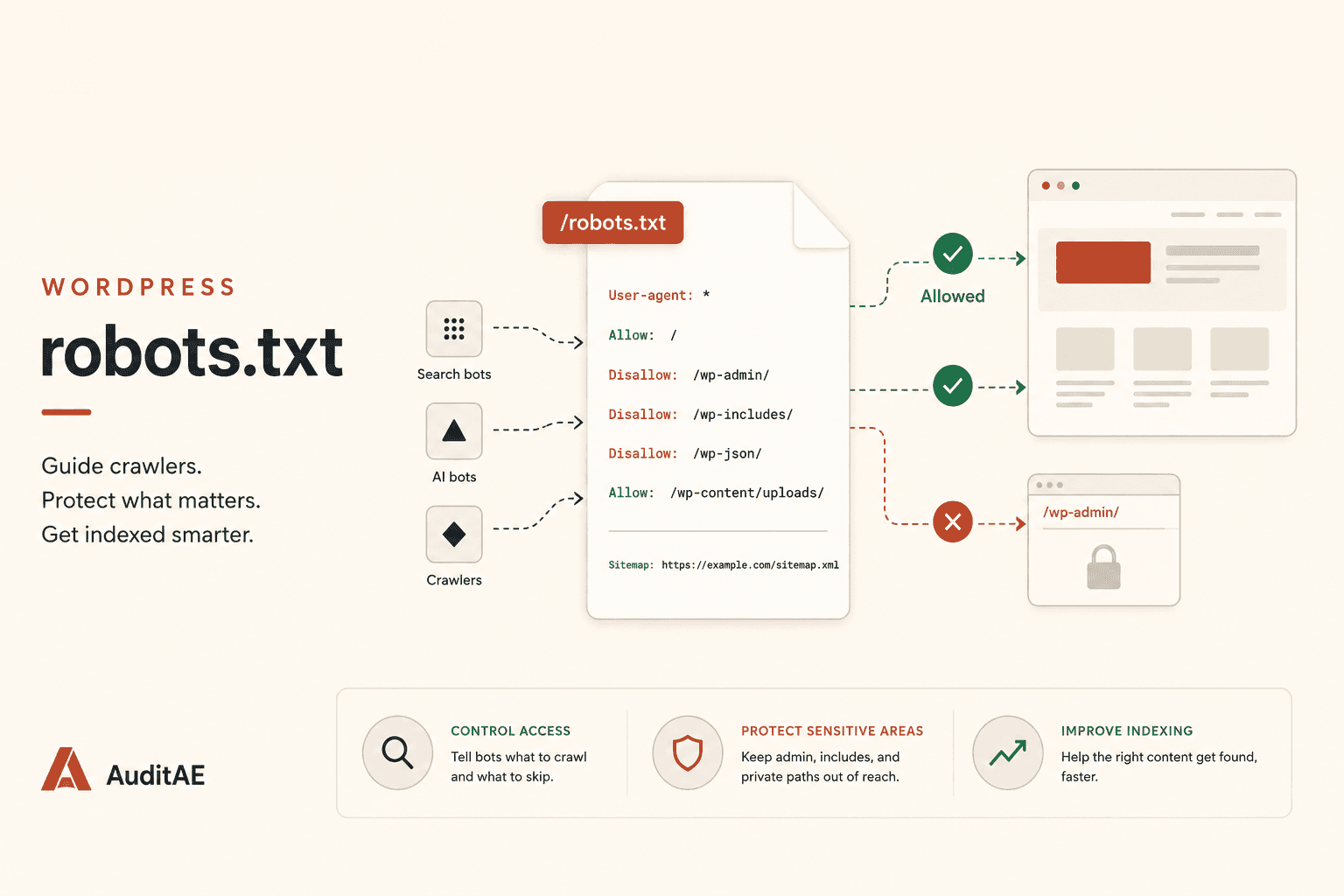
robots.txt is a plain-text file at the root of your domain (yourdomain.com/robots.txt) that tells crawlers which paths they may fetch. It's defined by the Robots Exclusion Protocol (REP), standardized as RFC 9309 in 2022 after 28 years as an informal convention.
Three properties matter for every decision you'll make with it:
- It controls crawling, not indexing.
Disallowtells a bot not to fetch a URL. It does not remove the URL from a search index, and a disallowed URL can still appear in results if other sites link to it. De-indexing is a different tool: anoindexmeta tag orX-Robots-Tagheader, which the crawler can only see if the page is not disallowed. - It's voluntary. Reputable crawlers (Googlebot, Bingbot, GPTBot, ClaudeBot, PerplexityBot) honor it strictly. Scrapers ignore it. That means robots.txt is useless as a security or privacy tool, and every path you list in it is publicly readable. A
Disallow: /secret-plans/line is an advertisement. - A bot obeys its own User-agent group, not the
*group. A crawler follows the group whoseUser-agenttoken matches its name (if several groups name the same token, their rules are combined).User-agent: *applies only when no named group matches. It's a fallback, not a base layer. That's why aUser-agent: GPTBotgroup withAllow: /overrides aUser-agent: *block entirely, and vice versa. Most real-world robots.txt bugs trace back to misunderstanding this rule.
Where robots.txt Lives in WordPress
Here's the part that surprises people: on a default WordPress install, there is no robots.txt file on disk. WordPress intercepts requests to /robots.txt with a rewrite rule and serves a virtual file, generated on the fly. The default output looks like this:
User-agent: *
Disallow: /wp-admin/
Allow: /wp-admin/admin-ajax.php

Sitemap: https://yourdomain.com/wp-sitemap.xml
That's a sensible default: keep bots out of the admin, carve out the AJAX endpoint some themes need, point everyone at the sitemap.
The virtual file has one critical property: a physical robots.txt in your site root overrides it completely. The moment a real file exists (uploaded by you, a migration, a security plugin, or a host), WordPress never serves the virtual version again. This is the number one source of robots.txt confusion: an SEO plugin's robots.txt editor happily shows you rules that a forgotten physical file is silently overriding. When in doubt, fetch yourdomain.com/robots.txt in an incognito window; what you see there is the only truth that matters.
One more WordPress-specific gotcha: Settings → Reading → "Discourage search engines from indexing this site." That checkbox sets blog_public to 0, which adds a noindex robots meta tag to every page (since WordPress 5.3 it no longer changes robots.txt). It's the right setting for a staging site and a catastrophe when it rides along to production. If your traffic (or your AI citations) fell off a cliff after a relaunch, check this box first.
How to Edit robots.txt in WordPress
Three ways, in order of how much control you want. (And one shortcut: if the only reason you're opening this file is to unblock AI crawlers, you don't need an editor at all. The free AuditAE plugin does that with one click, covered below.)
1. Through a plugin UI (easiest). Yoast (Tools → File editor) and Rank Math (General Settings → Edit robots.txt) both include editors, but they work on different things. Yoast creates and edits a physical robots.txt file; from then on, that file is the single source of truth. Rank Math edits the virtual file, which means its editor silently stops mattering the moment a physical robots.txt exists on disk. (Neither plugin audits the file against AI crawlers afterward. See how Yoast and Rank Math compare on AI search for what each does and doesn't cover.)
2. By editing the physical file directly. Connect over SFTP (or your host's file manager), and create or edit robots.txt in the same directory as wp-config.php. Plain text, UTF-8, one directive per line.
3. Through the robots_txt filter (cleanest for developers). If no physical file exists, you can append or modify rules in code:
add_filter( 'robots_txt', function ( $output, $public ) {
    $output .= "\nUser-agent: GPTBot\nAllow: /\n";
    return $output;
}, 10, 2 );
This is the approach the AuditAE plugin uses for its one-click AI-bot fix (more below): it keeps the file virtual, version-controlled with your plugins, and impossible to fat-finger over SFTP.
After any edit, verify from the outside: fetch /robots.txt in an incognito window and confirm the change is live. If you're on a CDN, purge it: a cached robots.txt serves stale rules for hours.
What a Good WordPress robots.txt Looks Like in 2026
For the large majority of WordPress sites, this is the whole file:
User-agent: *
Disallow: /wp-admin/
Allow: /wp-admin/admin-ajax.php

Sitemap: https://yourdomain.com/sitemap_index.xml
(Swap the Sitemap line for whatever your SEO plugin generates: Yoast uses sitemap_index.xml, core uses wp-sitemap.xml.)
Notice what's not in it:
- No
Disallow: /wp-content/or/wp-includes/. This was cargo-cult advice circa 2012. Modern engines render pages; blocking your CSS, JavaScript, and uploads breaks rendering and hurts you in every engine, classic and AI alike. - No blocking of category, tag, or search pages. Thin-archive problems are better solved with
noindex(which every SEO plugin applies sensibly), and remember, a disallowed page can't even communicate itsnoindex. - No AI-bot blocks you can't explain. Every
User-agentgroup naming an AI crawler should exist because you made a deliberate decision about that specific bot.
Add Disallow rules only for genuinely infinite or worthless crawl spaces: faceted-search parameter pages, cart and checkout URLs on WooCommerce (/cart/, /checkout/, /my-account/). Blocking internal search (/?s=) is a common optional extra, not a requirement: crawler handling of query-string patterns varies, and the noindex your SEO plugin already applies to search results is the more reliable control. If you can't articulate the crawl-budget problem a rule solves, delete the rule.
The Classic Mistakes (Still Breaking Sites in 2026)
- The staging leftover. A staging
Disallow: /or the "Discourage search engines" checkbox (a sitewidenoindex, not a robots.txt rule) shipped to production. Symptom: everything drops at once, in Google and in AI answers. - The forgotten physical file. Your SEO plugin's editor shows perfect rules; the actual response at
/robots.txtis a file someone uploaded in 2019. The outside view always wins. - Blocking assets.
Disallow: /wp-content/makes every page render as unstyled soup to crawlers that execute layout, which now includes the retrieval bots feeding AI answers. - Using robots.txt as noindex. Disallowed URLs still surface from external links, now with a useless "no information available" snippet, and they can never deliver the
noindexthat would actually remove them. - The 5xx trap. Under RFC 9309, a robots.txt that returns a server error initially means assume the whole site is disallowed. A crawler may fall back to a recently cached copy, and only after a prolonged outage (think weeks) treat the file as simply unavailable. A missing file (404) is full allow; a broken one is full block. A robots.txt route that intermittently 500s (a misbehaving plugin, a WAF rule) switches your whole site off for every well-behaved crawler until it recovers, with no visible symptom on the site itself.
The New Job: robots.txt Decides Your AI Visibility
Everything above was true in 2020. What's new is who's reading the file. Your robots.txt is now the gatekeeper for two distinct kinds of AI crawler:
| Bot | Operator | What blocking it costs you |
|---|---|---|
GPTBot | OpenAI | Excluded from GPT model training |
OAI-SearchBot | OpenAI | Invisible to ChatGPT search results |
ChatGPT-User | OpenAI | Little in practice: OpenAI documents that robots.txt may not apply to user-initiated fetches |
ClaudeBot | Anthropic | Excluded from Claude training |
Claude-User / Claude-SearchBot | Anthropic | Claude can't fetch or search you live |
PerplexityBot | Perplexity | Out of Perplexity's index |
Perplexity-User | Perplexity | Little in practice: it fetches on direct user request and generally ignores robots.txt |
Google-Extended | Out of Gemini training and Gemini-app grounding (does NOT affect Google Search or AI Overviews; opting out of AI Overviews and AI Mode is a separate Search Console setting) | |
Bingbot | Microsoft | Out of Bing and Copilot, an index some other AI engines also lean on |
The distinction that matters is training versus retrieval. Blocking training bots (GPTBot, ClaudeBot, Google-Extended) is a legitimate editorial stance: you're opting out of model training corpora, and it costs you little visibility today. Blocking retrieval bots (OAI-SearchBot, PerplexityBot, Claude-SearchBot, Bingbot) is different: it removes you from live AI answers, the citations that send actual referral traffic. If your brand's plan includes being the answer when a buyer asks ChatGPT for recommendations, the retrieval bots must be allowed. (Two bots aren't really yours to control either way: OpenAI says robots.txt "may not apply" to ChatGPT-User and Perplexity says the same of Perplexity-User, because both only fetch pages a human explicitly asked them to open. If you truly need to stop those, it's a server-level rule, not a robots.txt line.)
The insidious failure is an accidental block, not a deliberate one. A User-agent: * group with an aggressive Disallow written to stop scrapers. A security plugin that "blocks bad bots" with a definition of bad frozen in 2021. A CDN bot-management preset. None of these announce "you are now invisible to Perplexity." The result just looks like AI engines never mention you, a problem you'd naturally misdiagnose as a content problem and spend six months writing your way out of.
Audit Your robots.txt Against Every AI Crawler (Free, One Minute)
You can check all of this by hand: fetch your robots.txt, find the best-matching group for each of about 30 bot names, apply the longest-match rule correctly, repeat whenever anything changes. Nobody does that twice. Not on WordPress, or not ready to install anything? The free AI crawler checker runs that check on any domain from the outside and quotes the line that decides each bot.
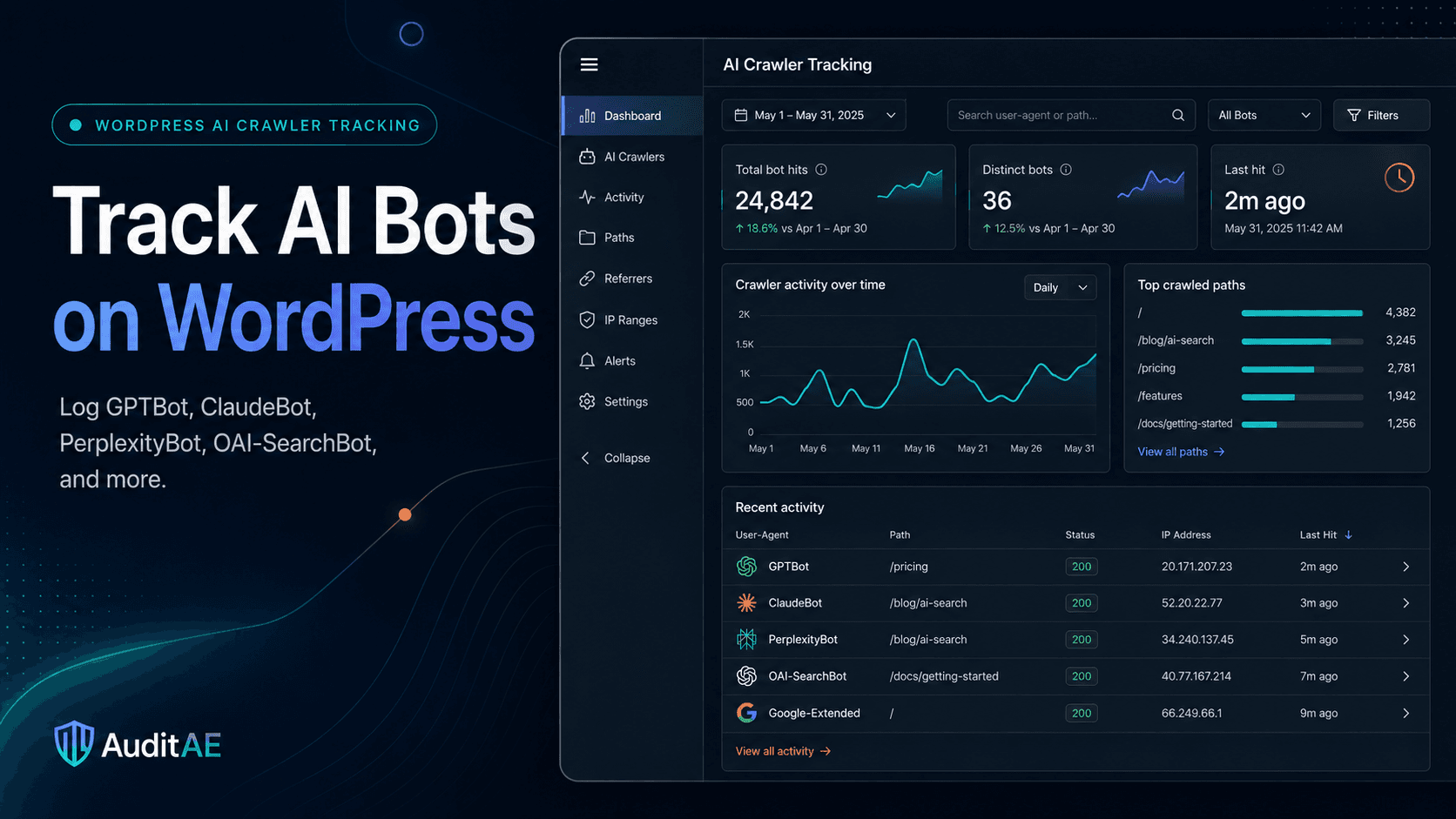
The free AuditAE plugin does it for you, and re-runs the check when you open it in wp-admin (at most once an hour). Its robots.txt audit fetches your site's own live /robots.txt (the outside view, so physical-file overrides and CDN caching can't fool it) and classifies every AI crawler in its tracker list as allowed, limited (some paths disallowed), or blocked (Disallow: /), using the same group-matching logic real crawlers use: a bot's own User-agent group first, * only as the fallback. (It's a triage check, not a full rule engine: a group that disallows / but allows a few paths still reads as blocked.) The ten bots in the table above (retrieval and training both) are called out in red when anything blocks them, and the verdict feeds your site's AI Readiness Score, so a regression shows up as a visible point drop, not a silent one. It also handles the edge cases correctly: a 5xx robots.txt is reported as the site-wide block it actually is, not as "no rules found, all clear."
Fixing what it finds is one click. On sites using the virtual robots.txt, the plugin appends an explicit allow group for the ten bots above via the robots_txt filter. Since a bot's own User-agent group overrides the * group, that unblocks them without touching your existing rules. Note the group deliberately includes the training bots: one click opts you back into everything, which is the right default for maximum AI visibility but a real decision if you'd rather stay out of training corpora. If a physical file exists (where no filter can help), the plugin shows the exact snippet to paste instead:
User-agent: GPTBot
User-agent: OAI-SearchBot
User-agent: ChatGPT-User
User-agent: ClaudeBot
User-agent: Claude-User
User-agent: Claude-SearchBot
User-agent: PerplexityBot
User-agent: Perplexity-User
User-agent: Google-Extended
User-agent: Bingbot
Allow: /
And it respects your intent: if you've deliberately checked "Discourage search engines," the fix stands down rather than carving AI bots back into a site you asked WordPress to hide.
The click path, start to finish
- Install the plugin. Plugins → Add New Plugin, search for AuditAE plugin, install and activate. Free, no account required.
- Open Settings → AuditAE and click the AI crawlers tab. The audit runs against your live
/robots.txtautomatically and lists every tracked bot as allowed, limited, or blocked. - Click "Unblock AI citation bots (one click)" if anything shows red. It appends the Allow group above to your virtual robots.txt, fully reversible from the same card. (On a physical-file site you'll get the copy-paste snippet instead.)
- Verify from the outside. Reload
yourdomain.com/robots.txt(the AuditAE group appears at the end), then check the crawler log a week later to watch the newly unblocked bots start visiting.
Because the audit lives next to the plugin's AI crawler tracker, you also get the confirmation loop: unblock a bot today, watch its hits appear in the log this week.
One Step Past robots.txt: The 404s AI Bots Are Hitting
An allowed crawler can still waste its visit. The same crawler log powers a report most site owners have never seen: the URLs AI bots requested and got a 404 for. Old permalinks, deleted pages, links that other sites (or the models themselves) still remember. Every one of those hits is an AI engine trying to read a page you could be cited for and getting nothing.
The plugin turns that log into suggested redirects: it lists the 404 paths AI crawlers actually hit, and you convert each into a 301 with one click. The redirects only fire on genuine 404s, so a rule can never hijack a real page, and each one counts its hits so you can see the cleanup working. It's an unusually high-signal redirect list, because it's built from what AI engines tried to read, not from a generic broken-link crawl.
The 2026 robots.txt Checklist
Run this quarterly, or after any migration, security-plugin install, or CDN change. It slots into the same cadence as the broader WordPress SEO audit:
- Fetch
yourdomain.com/robots.txtin an incognito window. Read what's actually there. - Confirm it returns HTTP 200 (or a deliberate 404), never a 5xx.
- Confirm "Discourage search engines" is off (Settings → Reading).
- Confirm no
Disallowcovers your content, uploads, CSS, or JavaScript. - Confirm every citation-critical AI bot resolves to allowed, or that each block is a decision you can defend.
- Confirm the Sitemap line points at your real sitemap.
- Check the crawler log a week later: allowed bots should be visiting, and their 404s should be trending to zero.
Steps 2, 5, and 7 are exactly what the free AuditAE plugin automates: the audit, the one-click fix, the crawler receipts, plus the llms.txt manifest and AI Readiness Score alongside. Install it, open the AI crawlers tab, and know in one minute whether the first file every AI crawler reads is inviting AI search in or quietly turning it away.
Not sure where your own site stands on these checks? The free AI search audit scores any domain 0–100 on robots.txt bot rules, llms.txt, Organization and Article schema, snippet directives, server-rendered text and freshness, and emails the fix for each one. No login, ten seconds.
Want the verdict for your own site? The free AI crawler checker checks your robots.txt against every major AI crawler, quotes the line that decides each one, and tests whether your firewall turns GPTBot, ClaudeBot, PerplexityBot or ChatGPT-User away. Your first check needs no login.
FAQ
By default, nowhere on disk. WordPress generates a virtual robots.txt and serves it at yourdomain.com/robots.txt through a rewrite rule. It only becomes a physical file if you or a plugin creates one in the site root. From that moment the physical file wins and WordPress stops serving the virtual version entirely.
You need a working one, but for most sites the WordPress default (block /wp-admin/, allow admin-ajax.php, link the sitemap) is already correct. The reason to touch it in 2026 is almost never to add clever Disallow rules. It's to verify nothing is blocking the AI crawlers that decide whether ChatGPT and Perplexity can cite you.
Only if you've decided you don't want to appear in AI answers. Blocking GPTBot keeps you out of OpenAI's training data, but blocking retrieval bots like OAI-SearchBot, Claude-SearchBot, PerplexityBot, or Bingbot removes you from live AI search results: the citations that actually send referral traffic. Blocking AI bots wholesale opts you out of AI search results as well as training, because the training and retrieval crawlers are different bots.
No. Disallow only tells crawlers not to fetch the page. If other sites link to it, the URL can still appear in results. Google just can't read the content. To actually remove a page from indexes, use a noindex meta tag or X-Robots-Tag header, and make sure the page is NOT disallowed, because the crawler has to fetch it to see the noindex.
Usually a plugin, a security tool, or your host added the rule. SEO plugins, WAF services, and staging-to-production migrations all write robots.txt rules. The classic cases are a staging robots.txt with 'Disallow: /' that shipped to production, or a physical robots.txt uploaded years ago that overrides whatever your SEO plugin thinks it's serving. Fetch yourdomain.com/robots.txt in an incognito window and read what's actually there.
Under RFC 9309, a robots.txt that returns a 5xx error means crawlers must initially assume the entire site is disallowed. They may fall back to a recently cached copy, and only after a prolonged outage treat the file as unavailable. That's the opposite of a missing file, which means full allow. A robots.txt that intermittently 500s can silently switch off crawling (and AI citations) sitewide, which is why the AuditAE audit surfaces the error state in red instead of reporting 'all clear'.
Run the citation report on your own brand.
See which prompts cite you on ChatGPT, Perplexity, Gemini, and Google AI Overviews — the first one’s free, no card.
Aaron is the founder of AuditAE. He has run AI-visibility audits for SEO agencies and in-house brand teams, and writes about how generative answer engines are reshaping the practice of search marketing.
Related reading
- 7 min readWordPress Redirect Plugin Guide 2026: Best Free Options, 301s Done Right, and the 404s AI Bots SeeEvery WordPress site accumulates broken URLs, and a redirect plugin is how you keep the link credit when they move. Here's an honest 2026 comparison of Redirection, Rank Math, Yoast Premium and the rest, how to set up a 301 with or without a plugin, and the blind spot they all share: none of them picks out the 404s AI crawlers are hitting.
- 9 min readAI Crawlers Explained: What ClaudeBot, GPTBot, OAI-SearchBot, and 27 Other Bots Want From Your WebsiteStrange user agents in your server logs, like ClaudeBot, GPTBot, OAI-SearchBot or PerplexityBot? Here's what every major AI crawler actually does with your content, which ones feed citations versus training data, how to verify the real thing, and how to decide bot-by-bot whether to block or allow.
- 9 min readHow to Track AI Bots (GPTBot, ClaudeBot, PerplexityBot) on Your WordPress Site and Boost Your SEOGPTBot, ClaudeBot, and PerplexityBot are crawling WordPress sites every day, and Google Search Console can't see any of it. Here's how to log every AI crawler hit, read the data, and use it to ship pages AI engines actually cite.