
How to Add an llms.txt File to WordPress: A Step-by-Step Guide
Adding an llms.txt file to WordPress takes about two minutes. Here's the easy way with the free AuditAE plugin, the manual method, and how to confirm AI bots are actually reading it.
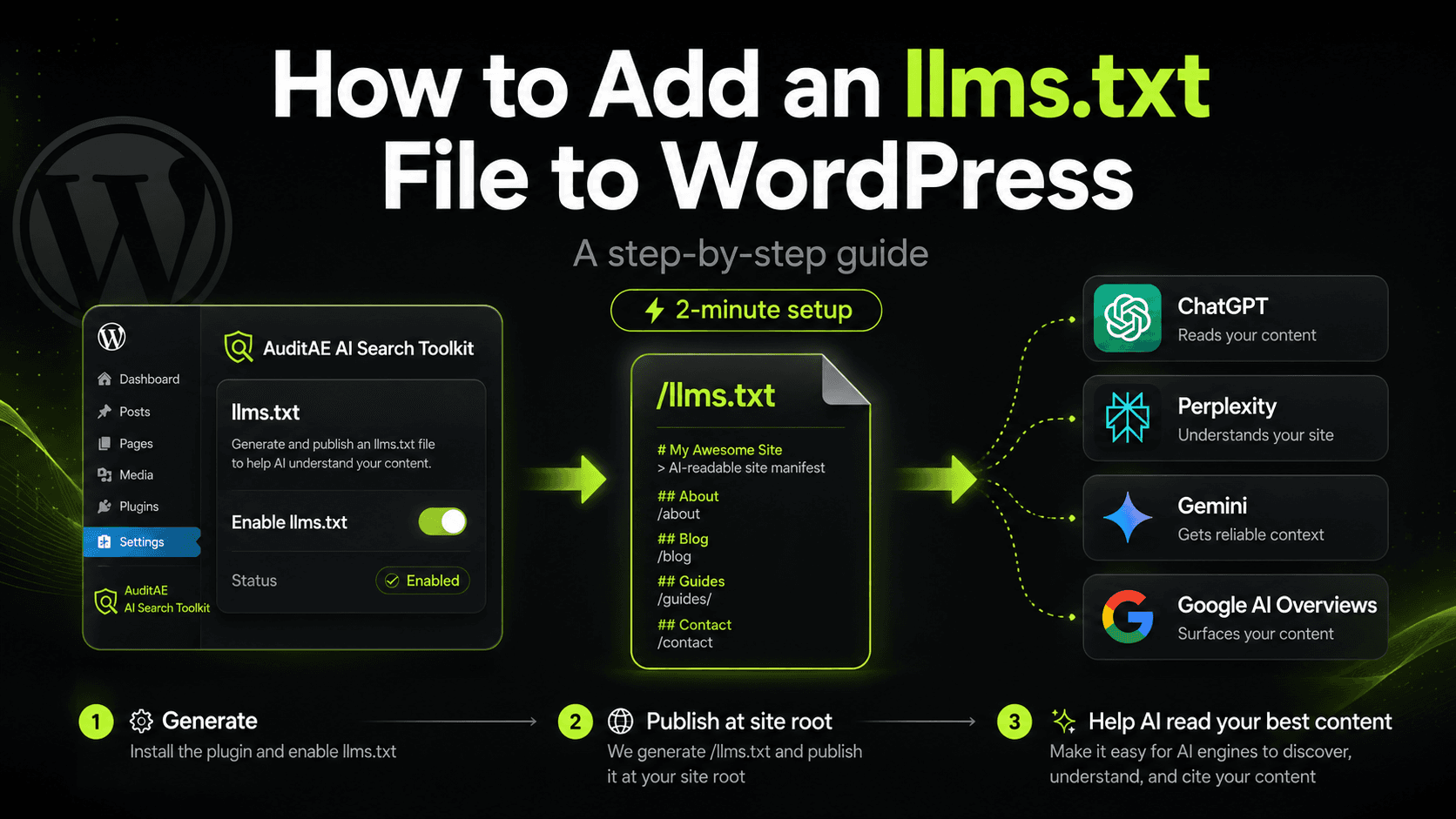
AI search engines now sit between your content and your buyers. When someone asks ChatGPT, Perplexity, Gemini, or Google's AI Overviews a question in your category, those engines decide which sources to read, summarize, and cite. An llms.txt file is one of the few levers you have to influence that decision — and adding one to WordPress takes about two minutes.
This guide covers what the file is, how to generate it, and how to add an llms.txt file to WordPress the easy way. The short version: install the free AuditAE plugin plugin, activate it, and you have a live, auto-generated /llms.txt at your site root — plus the tools to confirm AI bots are actually reading it. We'll walk through that, and the manual method too.
Understanding llms.txt
What is llms.txt?
llms.txt is a plain-text, Markdown-formatted file you place at the root of your site that tells large language models which content matters most and how it's organized. Think of it as a curated reading list written for AI rather than for search crawlers, following the spec at llmstxt.org.
It's often compared to robots.txt and your XML sitemap, but it does a different job. robots.txt controls what crawlers may access. Your sitemap lists everything for ranking engines. llms.txt does neither — it hands AI systems a prioritized, human-readable summary of your best URLs so they can understand and cite your site more accurately. All three files complement each other without conflict.
A basic llms.txt contains an H1 with your site name, a short blockquote describing the site, and one or more sections (Posts, Pages, Docs, Products) listing key URLs with titles and short descriptions.
Benefits of Using llms.txt
- Point AI at your best content. Instead of letting engines guess, you surface your most authoritative, evergreen pages so they're more likely to be read and cited.
- Cleaner machine comprehension. LLMs retrieve and synthesize structured text more reliably than they parse heavy HTML. A curated manifest removes that friction.
- Future-proofing for AEO/GEO. Answer Engine Optimization and Generative Engine Optimization are early, but adoption is climbing. Adding the file now is a low-cost head start.
- More control over your narrative. You decide which resources get weighted, rather than leaving it entirely to a crawler's interpretation.
One honest caveat: llms.txt is not yet a confirmed ranking factor, and Google has said it doesn't currently use it for AI Overviews. Like an XML sitemap, it improves your odds and removes technical barriers — it doesn't guarantee citations. (We go deep on what llms.txt does and doesn't do in a companion guide.) The value comes from pairing the file with a way to measure whether it's working, which is exactly where the AuditAE toolkit earns its place.
Preparing Your WordPress Site
Checking WordPress Compatibility
The AuditAE plugin is deliberately lightweight. Confirm the basics:
- WordPress 6.0 or newer (tested up to 7.0).
- PHP 7.4+ — check under Tools → Site Health → Info → Server.
- A reachable site root, so the file resolves at
yourdomain.com/llms.txt. AuditAE serves the file through WordPress itself, so there's no filesystem permission headache — it works out of the box on managed hosts like Pressable, WP Engine, and Kinsta.
If you run a caching or CDN layer (Cloudflare, a page cache), note it now — those are the usual suspects when a file appears stale later.
Required Plugins for llms.txt
You don't strictly need a plugin — you can upload a static file by hand — but a plugin keeps the file in sync as you publish, and gives you the surrounding AEO tooling a static file can't. The AuditAE plugin is free, requires no account, and everything works the moment you activate it:
- AI Readiness Score — one 0–100 score with a letter grade summarizing how ready your site is to be read and cited by ChatGPT, Perplexity, Gemini, and AI Overviews. It tracks a 7-day delta so you watch it climb as you ship fixes, and one of its eight weighted checks is whether llms.txt is being served.
- AI Crawler Tracker — logs hits from ~30 AI bots (GPTBot, ClaudeBot, PerplexityBot, Google-Extended, and more) with a built-in robots.txt audit. (See how to track AI bots on WordPress for what to do with that data.)
- llms.txt Generator — the focus of this guide.
- Schema Graph + FAQ schema — linked JSON-LD that AI engines reward, including a free question-and-answer editor right in the post editor.
All of it stores data locally in wp_options — no custom tables, no telemetry, no external calls unless you opt in.
Using an llms.txt Generator
Choosing a Reliable llms.txt Generator
A good llms.txt generator should let you select which post types to include, customize the title/intro/section headings, include or exclude specific URLs, cache the output so it adds no per-request overhead, and regenerate automatically.
Both Yoast and Rank Math now ship free llms.txt generation, so you may already have one — Rank Math's is the more configurable of the two, and our side-by-side comparison covers exactly what each includes. What neither offers is any way to check whether an AI engine ever read the file, which is the gap the rest of this guide is really about.
The AuditAE plugin was built for this specific job and clears every item on that list:
- Serves a live
/llms.txtat your root on activation — conforming to the llmstxt.org spec. - Auto-builds defaults from your public post types — H1 from your site title, a one-line blockquote intro, and a section per post type listing your latest entries with title, URL, and a clean one-line description.
- Pulls the best description it can find — a hand-written excerpt first, then your SEO plugin's meta description (Yoast, Rank Math, AIOSEO, or SEOPress), falling back to your content with shortcodes and block markup stripped out — so booking widgets,
[paypal_button]shortcodes, and other junk never leak into the manifest. - Per-section customization — rewrite the H1, the blockquote, and each section title from the admin tab.
- Optional links section — add canonical resources you want LLMs to weight, one per line as
Title | URL | description. - One-click "Reset to defaults" if you want to start fresh.
- Transient-cached, regenerated only on save — so it adds zero per-request cost.
- Plays nicely with Yoast and Rank Math — it owns the new AEO surface and defers to your SEO plugin for everything it already does well, reusing their schema
@idvalues instead of duplicating them.
Step-by-Step: Creating Your llms.txt File
- Install the plugin. In WordPress, go to Plugins → Add New, search for "AuditAE," and click Install then Activate. (Or upload the ZIP from the WordPress.org listing.)
- You're already serving llms.txt. On activation, AuditAE builds a default manifest from your public post types and serves it immediately. There's nothing to upload.
- Open the llms.txt tab. Go to Settings → AuditAE → llms.txt to review the generated file.
- Customize it. Rewrite the H1 and blockquote intro, edit per-section titles, toggle which sections appear, and add an optional links list for the URLs you most want AI engines to weight.
- Save. The file regenerates and re-caches on save — done.
If you'd rather hand-write the manifest for reference, the format is simple Markdown:
# Your Site Name

> A one-line description of what your site covers.

## Key Articles
- [How to Add an llms.txt File to WordPress](https://example.com/llms-txt-wordpress): Step-by-step guide.
- [What Is Answer Engine Optimization](https://example.com/aeo): AEO fundamentals.

## Pages
- [About](https://example.com/about): Who we are.
- [Contact](https://example.com/contact): Get in touch.
Keep it lean — a focused list of your strongest URLs beats an exhaustive dump. With AuditAE, that curation happens in the admin tab instead of a text editor.
Uploading llms.txt to WordPress
Manual Upload Process
If you generated a static file yourself and want to place it by hand, drop it at the site root so it resolves at yourdomain.com/llms.txt:
- Connect via SFTP or your host's File Manager.
- Navigate to the WordPress root directory (where
wp-config.phplives). - Upload
llms.txtthere. - Visit
yourdomain.com/llms.txtto confirm it loads.
The catch: a static file goes stale the moment you publish or retire a post, and you'll be re-uploading by hand every time. It also can't tell you whether any AI bot ever read it.
Using a Plugin for Upload
This is the recommended route, and with AuditAE there's no upload step at all. The plugin serves the file through a WordPress route rather than writing a physical file, which sidesteps filesystem and permission issues entirely and keeps the manifest current as your content evolves. Activate the plugin and the file is live — then refine it from the admin tab whenever you want. That's the whole "upload" process.
Verifying Your llms.txt Implementation
Testing Access to Your llms.txt File
- Load it directly. Open
yourdomain.com/llms.txtin a browser. You should see plain text, not a 404 or your theme's design. - Check your AI Readiness Score. AuditAE's Score tab runs a dedicated "llms.txt served" check (worth 8 points) and confirms it's live — no guesswork.
- Confirm AI engines are actually reading it. This is the step every other guide skips. AuditAE's AI Crawler Tracker logs hits from ~30 AI bots, with a by-bot breakdown, "time since last hit," top crawled paths, and a CSV export. If GPTBot and PerplexityBot are showing up in the log, your file is doing its job.
- Run the robots.txt audit. AuditAE flags any tracked AI bot your robots.txt is blocking — the silent killer of AI visibility. A stale
Disallowaimed at scrapers routinely takes citation bots down with it, and from the outside that looks identical to "AI just doesn't cite me."
Common Issues and Troubleshooting
- 404 at /llms.txt. Usually a permalink/rewrite issue. Re-save permalinks under Settings → Permalinks. Because AuditAE serves the file via a WordPress route, reactivating the plugin re-registers it.
- File shows your theme instead of text. A rewrite rule isn't registering — deactivate and reactivate the plugin to flush it.
- Caching/CDN serving a stale version. Purge your page cache and Cloudflare cache after editing the manifest.
- You're being crawled but not cited. AuditAE's crawler log distinguishes the two problems: lots of GPTBot hits but no citations is a content problem; zero GPTBot hits is a crawl problem (robots.txt, WAF, or host block list). The robots.txt audit and the AI Readiness Score point you straight at the fix.
- Private pages leaking in. AuditAE builds the manifest from your public post types, so private and non-indexed content stays out by design.
Updating llms.txt Regularly
llms.txt isn't a set-and-forget file — and keeping it current is precisely where a plugin beats a static upload.
- Your content changes. New cornerstone posts should make the list; retired URLs should come off so AI engines aren't pointed at 404s. AuditAE's manifest is built from your live post types and re-caches on save, so it stays aligned with your site instead of drifting.
- The AI landscape changes. New engines and crawlers launch constantly. AuditAE keeps pace — recent releases added Claude-User, Claude-SearchBot, MistralAI-User, and AI2Bot to the tracker, so your crawler data reflects the bots that actually matter today.
- Close the loop. Publish or refresh content → review the manifest → check the crawler log to confirm bots are reading it → watch your AI Readiness Score and citation data move. That feedback cycle is the real payoff, because generating the file is only step one; knowing whether it moved the needle is the part that matters.
Take It Further: Pair With AuditAE
Everything above is free and standalone. If you want to know not just whether AI bots read your site but whether they cite your brand, pair the plugin with an AuditAE account. AuditAE fires the prompts your buyers actually ask against ChatGPT, Perplexity, Gemini, and Google AI Overviews and reports back, prompt by prompt and engine by engine: cited, not cited, and who ranked instead of you.
Once paired, the AuditAE assistant (AEBOT) can also curate your /llms.txt from chat ("add my top 10 most-cited posts from May"), inject FAQ and Article schema, fix bot 404s with one-click redirects, and write Yoast or Rank Math meta — all pushed back to WordPress without leaving the conversation. Pricing is pay-per-use: 5–12¢ per prompt × engine check (by engine), $0.05 per WordPress action, with $5 in free credit at signup and no subscription.
Not sure where your own site stands on these checks? The free AI search audit scores any domain 0–100 on robots.txt bot rules, llms.txt, Organization and Article schema, snippet directives, server-rendered text and freshness — and emails the fix for each one. No login, ten seconds.
FAQ
Do I need an AuditAE account to use the plugin?
No. The AI Readiness Score, Crawler Tracker, llms.txt generator, schema graph, and FAQ schema are all fully free and standalone — they work the moment you activate the plugin. Pairing with AuditAE is optional and only adds the citation-audit and AEBOT writing features.Is llms.txt the same as robots.txt?
No. robots.txt controls crawler access; llms.txt recommends your most valuable content to AI models. They work together.Does adding llms.txt guarantee AI tools will cite my content?
No — like an XML sitemap, it improves your chances by removing technical barriers, but it doesn't guarantee placement. That's why measuring with the crawler log and citation audits matters.Where should the file live?
At your site root, accessible at yourdomain.com/llms.txt. AuditAE serves it there automatically.Will the plugin slow down my site?
No. Crawler detection is a single substring scan on template_redirect, the log is bounded to 500 entries, and the /llms.txt response is cached in a transient. Per-request overhead is well under a millisecond.
Aaron is the founder of AuditAE. He has run AI-visibility audits for SEO agencies and in-house brand teams, and writes about how generative answer engines are reshaping the practice of search marketing.
Related reading
- 10 min readHow to Improve Brand Visibility in AI Search Engines: 8 Fixes You Can Ship This MonthAI engines already have an opinion about your brand. Here is how to check what it is, and the eight fixes, in order, that change it — with the WordPress path for each one.
- 7 min readYoast vs Rank Math for AI Search in 2026: Both Ship llms.txt, Neither Measures AnythingBoth of the big WordPress SEO plugins now generate llms.txt for free — and neither can tell you whether a single AI engine has read the file, crawled the page, or cited you in an answer. Here's the honest feature split, where Rank Math is ahead, and the measuring gap both leave open.
Run the citation report on your own brand.
See which prompts cite you on ChatGPT, Perplexity, Gemini, and Google AI Overviews — the first one’s free, no card.