
Image SEO for WordPress: How to Name, Rename & Tag Images So AI Engines Read Them
Image SEO is mostly two text signals: the file name and the alt text. Here's how to name images for SEO, rename bad filenames in WordPress without breaking anything, and write alt text — by hand or with the free AuditAE plugin.
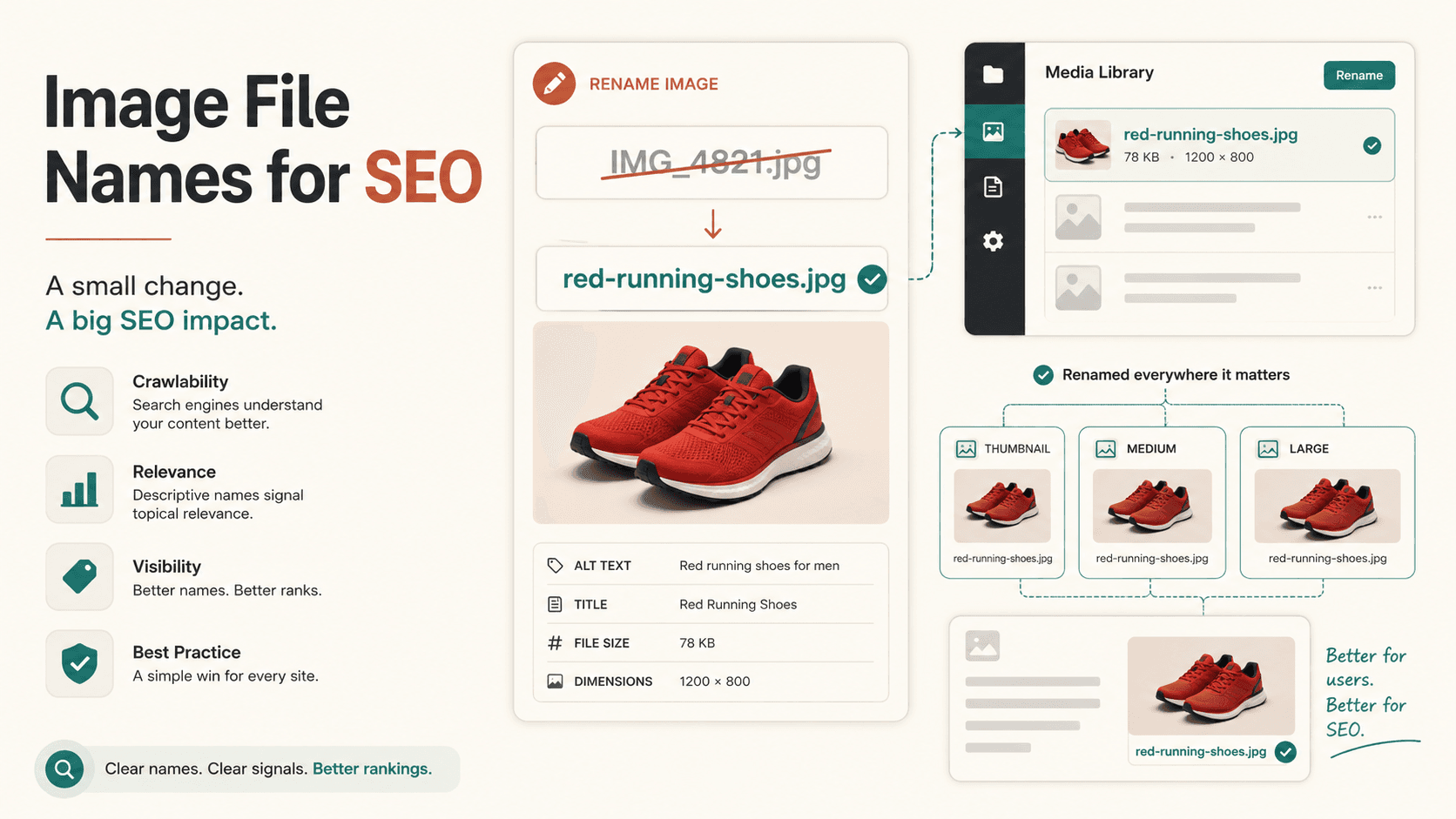
Most "image SEO" advice drowns you in compression settings and lazy-loading. Those help page speed, but they're not what search and AI engines read about your images. Two text signals do most of the work: the file name and the alt text. Both are plain text an engine can parse, and most sites get both wrong.
This guide is the practical version: how to name images for SEO before you upload, how to rename the messy ones already in WordPress without breaking your pages, and how to handle alt text — by hand, or with the free AuditAE plugin plugin.
Why image file names matter
Open your Media library and you'll find a graveyard of IMG_4821.jpg, screenshot-2026-01-02.png, and DSC_0099.jpg. Every one of those is a wasted signal.
A file name is part of the image's URL, and it's one of the few image attributes that engines read directly. Google's own image SEO documentation says the file name "can give Google clues about the subject matter of the image." AI answer engines and image search lean on the same readable text. red-running-shoes.jpg describes the subject; IMG_4821.jpg describes nothing.
It's not a giant ranking lever — content and links still dominate. But a descriptive name is free, low-effort signal that almost everyone leaves on the table.
One newer wrinkle, without overselling it: search most of these image-naming queries today and Google answers with an AI Overview above the blue links. Showing up inside that answer is a separate problem from ranking under it, but it leans on the same foundation — a page clean and readable enough that a machine can tell what's on it. Descriptive filenames are part of that baseline, not a trick that earns an AI citation on their own — they sit alongside crawler access and schema in the same readability layer.
How to name images for SEO
The rules are simple and apply whether you're naming a new file or rewriting an old one:
- Describe the subject, specifically.
blue-mens-trail-shoe.jpg, notproduct1.jpg. - Use hyphens between words, not underscores or spaces. Search engines treat hyphens as word separators;
red_running_shoes.jpgreads as one token. - Lowercase everything. Avoids case-sensitivity surprises across servers and CDNs.
- Keep it tight. Two to five descriptive words. Don't stuff keywords —
best-cheap-red-running-shoes-buy-online-2026.jpglooks like spam. - Skip stop words where they add nothing (
the,a,and).
The easiest win is to rename the file before you upload it. Once it's in WordPress, renaming gets harder — which is the next problem.
The catch: WordPress won't rename files for you
Here's what trips people up. WordPress lets you edit an image's title, alt text, caption, and description in the Media library — but it will not let you change the underlying file name. The file you uploaded as IMG_4821.jpg stays IMG_4821.jpg forever.
Worse, you can't just rename the file over FTP, because WordPress doesn't store one copy of your image. On upload it generates several resized versions (thumbnail, medium, large, and any theme-defined sizes) and wires them into the responsive srcset on every page where the image appears. Rename the original and miss a size — or miss the URL baked into a post — and you get broken images and a busted srcset.
So your real options are:
- Re-upload under a better name, then hunt down and fix every post that used the old one. Tedious and error-prone.
- Use a plugin that renames the file and every generated size and rewrites the references for you.
The easy way: one-click rename with AuditAE
The free AuditAE plugin adds a Rename file action to each image in the Media library. Click it, type a descriptive slug, and it:
- renames the original file and every generated thumbnail size in one move,
- keeps the file type intact, and
- rewrites the old URL to the new one inside your existing post content, so your live images and
srcsetnever break.
It's free, needs no account, and is gated by your normal WordPress permissions — only users who can already edit media can rename. Data stays local; there's no external call.
Two honest limits. It rewrites references in standard post content and, from plugin 0.29.0, in Elementor pages and templates too — so anything living outside those, such as custom fields, theme settings, or CSS background images, is worth a quick check after a rename. And renaming changes the image's URL: for an image that already pulls image-search traffic or has external links pointing at it, keep or redirect the old URL so those references still resolve, since Google prefers an image served from one consistent URL.
How to rename an image in WordPress
- Install the plugin. In WordPress, go to Plugins → Add New, search for "AuditAE," and click Install then Activate.
- Open the Media library (Media → Library) and click the image you want to fix.
- Click "Rename file." Type a descriptive, hyphenated slug —
red-running-shoes— and confirm. - Done. The original and all sizes are renamed, and the URL is rewritten everywhere it appeared in your posts. No broken images, no manual link-chasing.
For a brand-new image, you'll still get the best result by naming the file well before upload — but for the hundreds of IMG_ files already on your site, this is the two-second fix.
What the rename actually does
Same image, same spot on the page, same layout — every size renamed and every in-post reference rewritten in one pass:
- Before:
<img src=".../IMG_4821.jpg" srcset=".../IMG_4821-300x200.jpg 300w, .../IMG_4821-768x512.jpg 768w" /> - After:
<img src=".../red-running-shoes.jpg" srcset=".../red-running-shoes-300x200.jpg 300w, .../red-running-shoes-768x512.jpg 768w" />
Don't forget alt text
The file name is one signal; alt text is the other. Alt text is the HTML attribute that describes an image for screen readers and for engines that can't "see" it — and it's a direct input to image search and AI answers. Empty alt attributes are one of the most common issues we see on WordPress sites.
Good alt text describes the image's content and context in a natural phrase — "Runner lacing up red trail shoes on a forest path" — without keyword-stuffing. Decorative images (dividers, background flourishes) should have empty alt (alt="") so engines skip them.
You set alt text in the same Media library panel where you edit the title and caption. If you've got a backlog of images with no alt text at all, that's where pairing the plugin with an AuditAE account pays off: the assistant, AEBOT, can list every image missing alt text, propose alt for each, and write alt, title, caption, and description in bulk — and rename files across the posts that matter — from a chat box.
Put it together
Image SEO isn't a compression checklist. It's two readable signals done consistently:
- Name files descriptively — before upload when you can, with a one-click rename when you can't.
- Write real alt text — for accessibility, image search, and AI engines alike.
Do both across your library and you've handed search and AI engines a lot more to work with — for free.
Worth keeping in proportion, though: filenames and alt text are hygiene, not the lever. If AI engines aren't citing you, the cause is far more often a robots.txt rule blocking the crawler than a library full of IMG_ files. Fix that first, then come back and clean up the images.
Install the AuditAE plugin to make the renaming painless, and if you want to know whether any of it is moving the needle on AI citations, AuditAE measures exactly that.
FAQ
Do image file names actually matter for SEO?
Yes — modestly but really. Google's own image SEO guidance says the file name gives clues about the subject, and it's one of the few image signals AI engines and image search can read directly. It won't outrank great content, but a descriptive name is free signal you're otherwise throwing away.Do image file names matter for AI search engines?
As page-readability hygiene, not a proven ranking lever. The crawlers behind AI answers — ChatGPT, Perplexity, and Google's AI Overviews — read your markup, and a descriptive filename is one more honest, machine-readable signal in it. Treat it as part of a clean, readable page rather than a trick that earns a citation by itself.Can I rename an image in WordPress after I've uploaded it?
Not from core WordPress — the Media library lets you edit the title, alt, caption, and description, but not the underlying file name. You either re-upload the file under a new name (and fix every link) or use a plugin that renames the file and rewrites references. The free AuditAE plugin adds a one-click Rename action that does both.Will renaming an image break my pages?
It will if you do it by hand and miss a reference — WordPress generates multiple sized copies of every image and wires them into srcset, so a rename has to update the original, every size, and every place the old URL appears. AuditAE's Rename action renames all sizes and rewrites the URLs inside your existing post content in one move.What's the difference between the file name and the alt text?
The file name is part of the image's URL and describes the file itself; alt text is an HTML attribute describing the image for screen readers and engines that can't see it. Both are text an engine can read, and they do different jobs — you want both right.Do I need an AuditAE account to rename images?
No. The Rename action, alt-text editing, AI Readiness Score, crawler tracker, and llms.txt generator are all free and standalone the moment you activate the plugin. Pairing with an AuditAE account is optional and adds AEBOT, which can rename in bulk and write alt/title/caption/description across the posts that matter.
Aaron is the founder of AuditAE. He has run AI-visibility audits for SEO agencies and in-house brand teams, and writes about how generative answer engines are reshaping the practice of search marketing.
Related reading
- 10 min readHow to Improve Brand Visibility in AI Search Engines: 8 Fixes You Can Ship This MonthAI engines already have an opinion about your brand. Here is how to check what it is, and the eight fixes, in order, that change it — with the WordPress path for each one.
- 11 min readHow to Add an llms.txt File to WordPress: A Step-by-Step GuideAdding an llms.txt file to WordPress takes about two minutes. Here's the easy way with the free AuditAE plugin, the manual method, and how to confirm AI bots are actually reading it.
Run the citation report on your own brand.
See which prompts cite you on ChatGPT, Perplexity, Gemini, and Google AI Overviews — the first one’s free, no card.