How to Connect Claude or ChatGPT to Google Analytics (GA4): A Step-by-Step Walkthrough
Ask Claude or ChatGPT about your GA4 traffic and Search Console queries in plain English. This walkthrough connects Google once in AuditAE, adds one URL to Claude.ai, ChatGPT or Claude Code, and shows the first questions to ask, what it costs (the Google tools are free) and how to fix the common errors.
On this page· 12 sections
You can already export a GA4 report and paste it into ChatGPT. It works once. Then you want last month instead of this month, or the same numbers by landing page, and you're back in the GA4 interface clicking through Explorations.
Connecting your AI assistant to Google Analytics removes that loop. You ask "which landing pages lost organic traffic this month?" and Claude or ChatGPT runs the GA4 report itself, reads the numbers and answers, then runs the next report when you ask a follow-up.
This walkthrough connects Google Analytics 4 (and Search Console, which comes with it) to Claude.ai, ChatGPT, Claude Code and Cursor using AuditAE's hosted MCP server. It takes about five minutes and needs no Google Cloud project. If you'd rather run something yourself, the other options are covered further down.
How the connection works
AI assistants reach outside data through MCP (Model Context Protocol). An MCP server describes a set of tools, such as "run a GA4 report for this site", and the assistant calls them when your question needs them. You never write the report yourself: the assistant picks the metrics and dimensions, and you see the tool call it made.
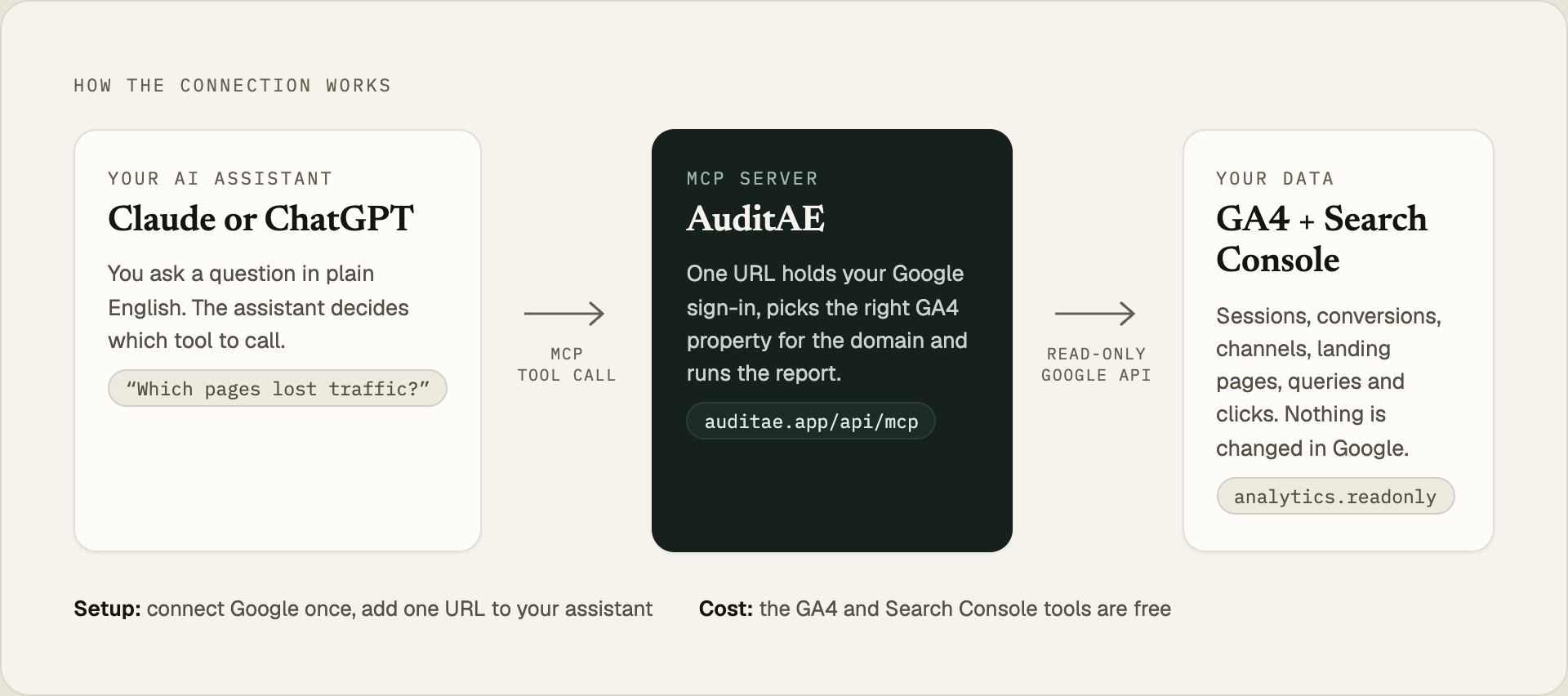
There are three pieces:
- Your Google sign-in, made once in the AuditAE dashboard with Google's read-only Analytics and Search Console permissions.
- The AuditAE MCP server at
https://auditae.app/api/mcp. It stores that sign-in encrypted, finds the GA4 property for the domain you ask about, and runs the report. - Your assistant, connected to that URL by signing in (Claude.ai, ChatGPT) or with an API key (Claude Code, Cursor).
What you need
- A Google account with at least Viewer access to the GA4 property (and to the Search Console site, if you want that too)
- An AuditAE account (free; new accounts get $5 of credit, no card)
- Claude.ai, the Claude desktop or mobile app, ChatGPT, Claude Code or Cursor
Step 1: Add your site to AuditAE
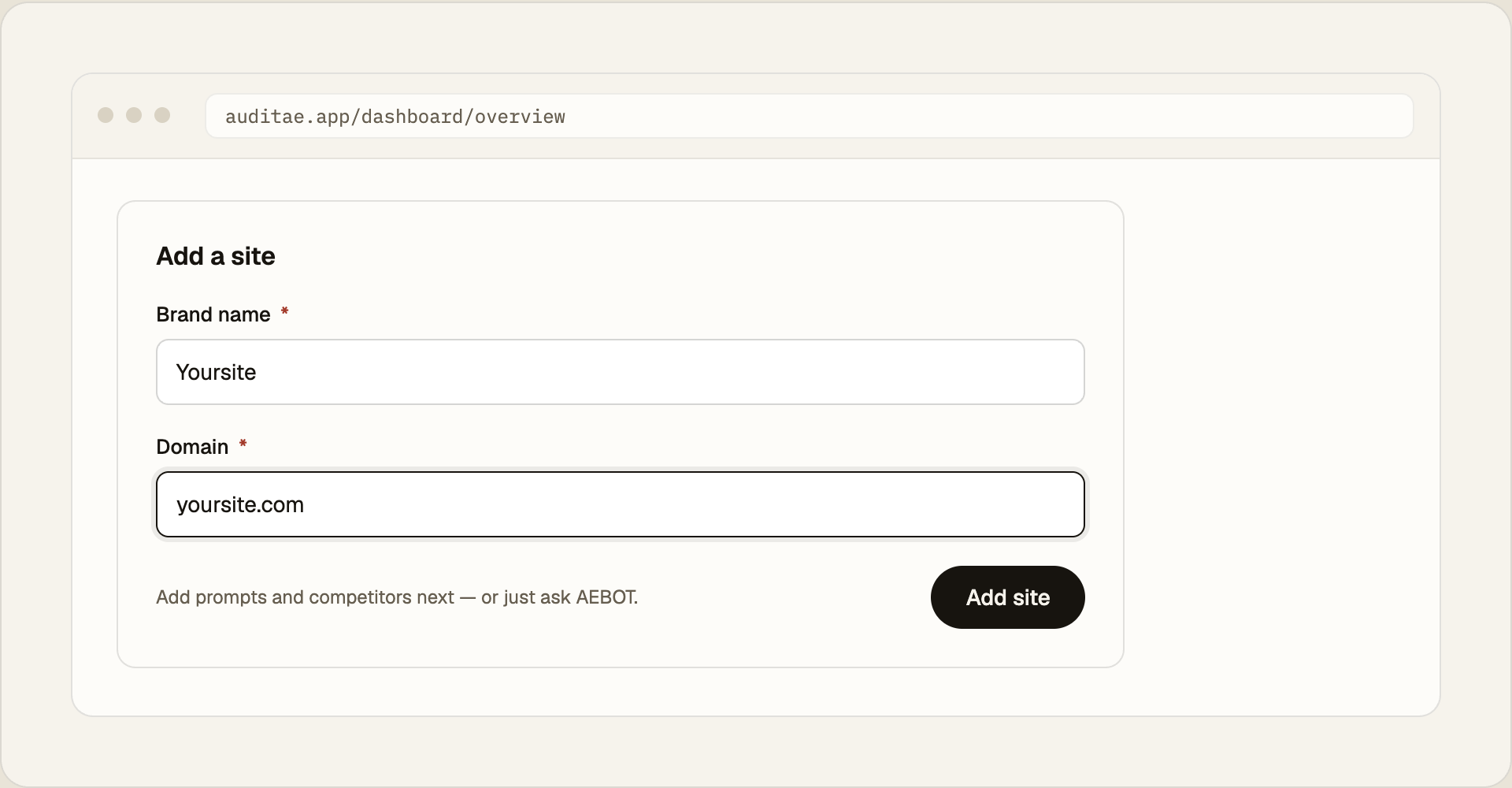
Sign up at auditae.app and add your site from the dashboard with Add site, or tell the in-app assistant "add Yoursite at yoursite.com". A site is just a name and a domain. AuditAE uses the domain to match questions to the right GA4 property, so "how did yoursite.com do last month?" goes to the right place even when you have ten sites.
Step 2: Connect Google and pick your GA4 property
-
Open the site, go to Settings and scroll to Connections.
-
Click Connect Google and sign in with the Google account that can see your GA4 property.
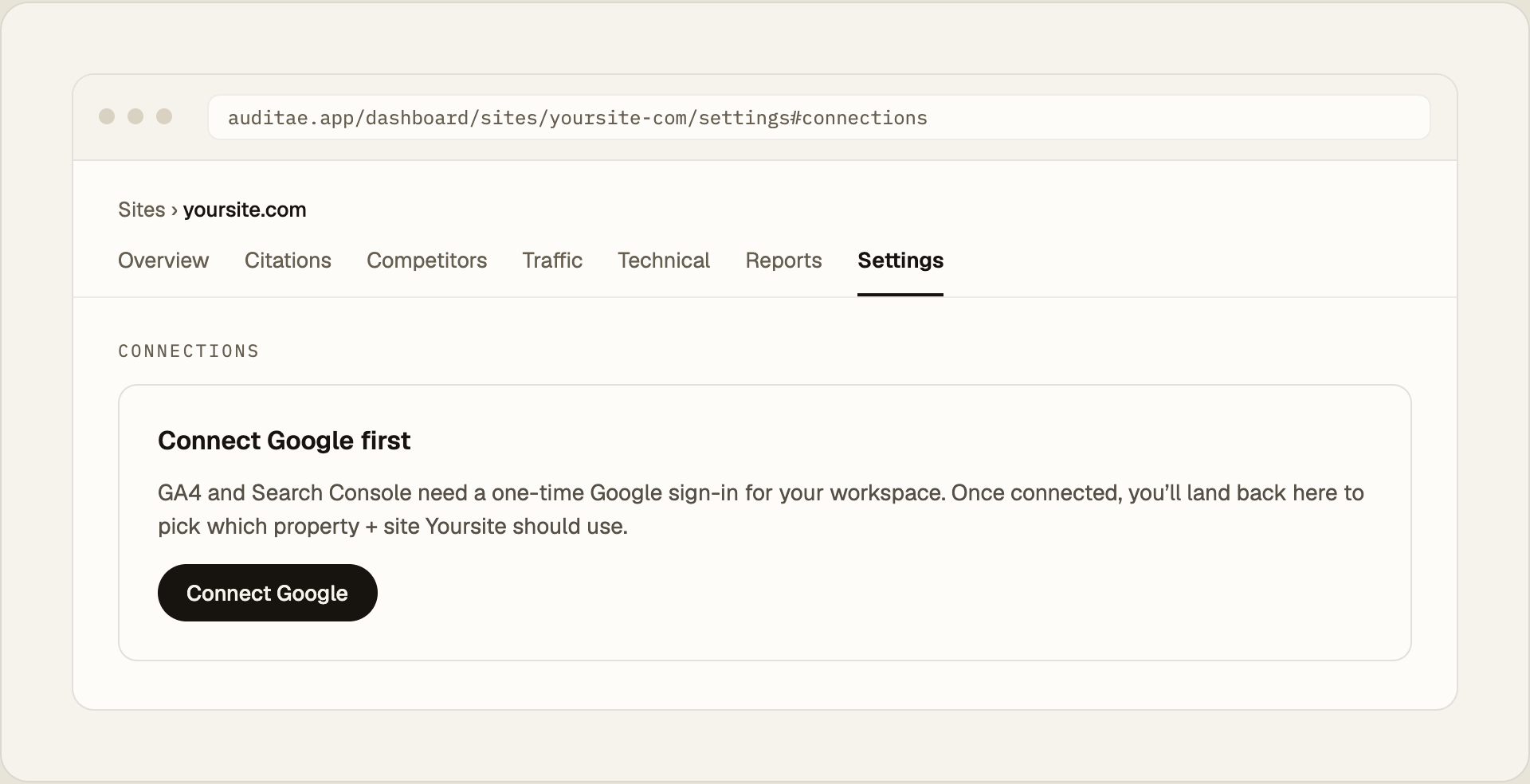
Step 2: before Google is connected, the site's Settings show a "Connect Google first" card. -
On Google's consent screen, make sure Google Analytics and Search Console are ticked. Google also lists Gmail (send only) and Drive (only files AuditAE creates); those are for emailing and saving reports from the AuditAE dashboard, and you can untick them. This guide doesn't need them.
-
You land back on the site's Settings. Pick the GA4 property and the Search Console site for this domain, then click Save selection.
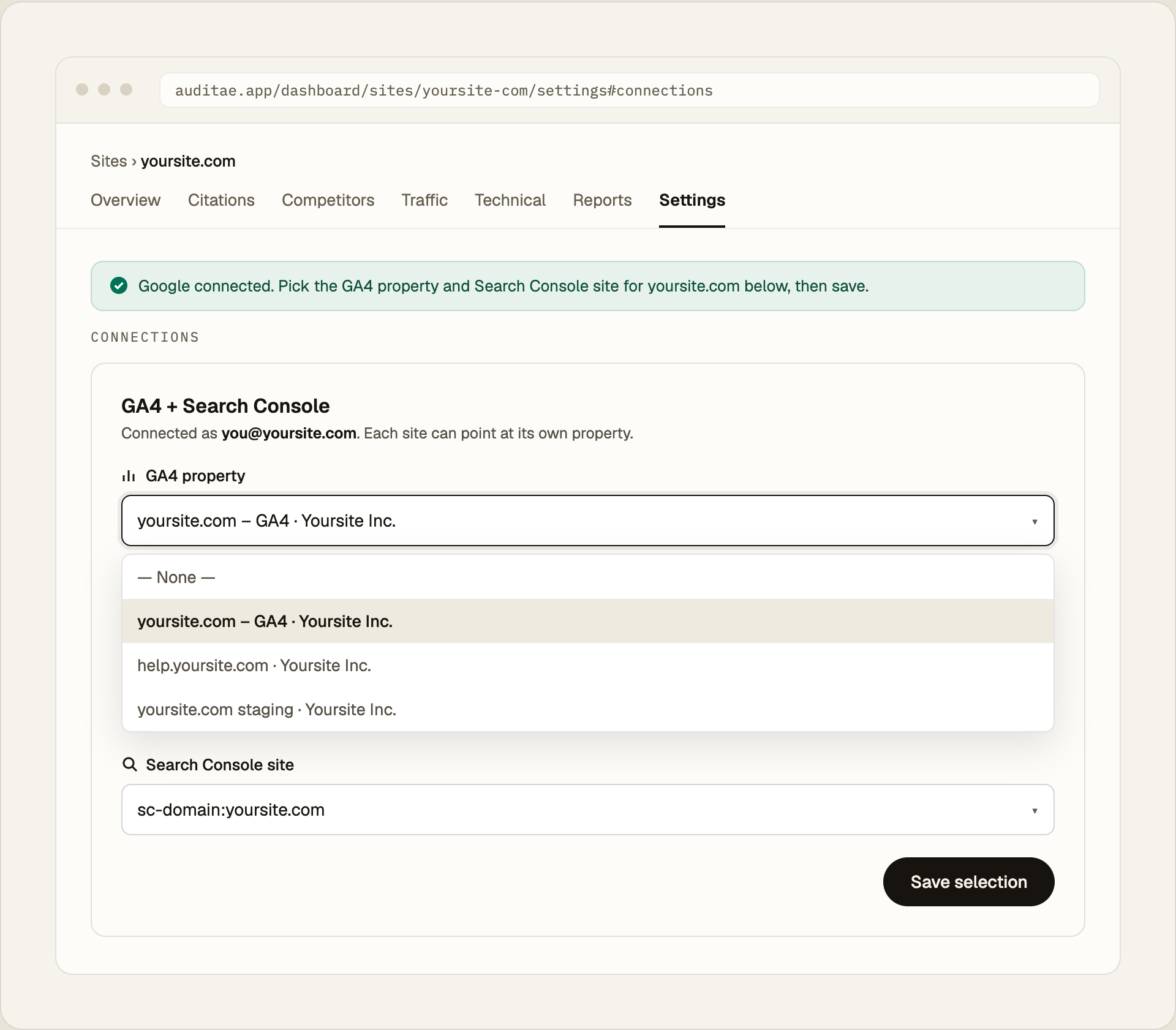
One Google sign-in covers the whole workspace. If you manage several sites, open each one's Settings and pick its own property; the dropdown lists every GA4 property your Google account can see. In a team workspace, only an admin can connect Google.
Step 3: Connect your AI assistant
Pick the assistant you use. They all reach the same server and the same tools.
Claude.ai (web, desktop app and mobile)
- In Claude, go to Customize → Connectors, click + Add, then Add custom connector.
- Name it AuditAE and paste
https://auditae.app/api/mcpas the server URL. - If the dialog asks how to authenticate, choose to sign in, and leave the OAuth client on Use Claude's published identity.
- Click Add, then Connect, and sign in with your AuditAE account.
- In a new chat, open the + menu → Connectors and make sure AuditAE is switched on.
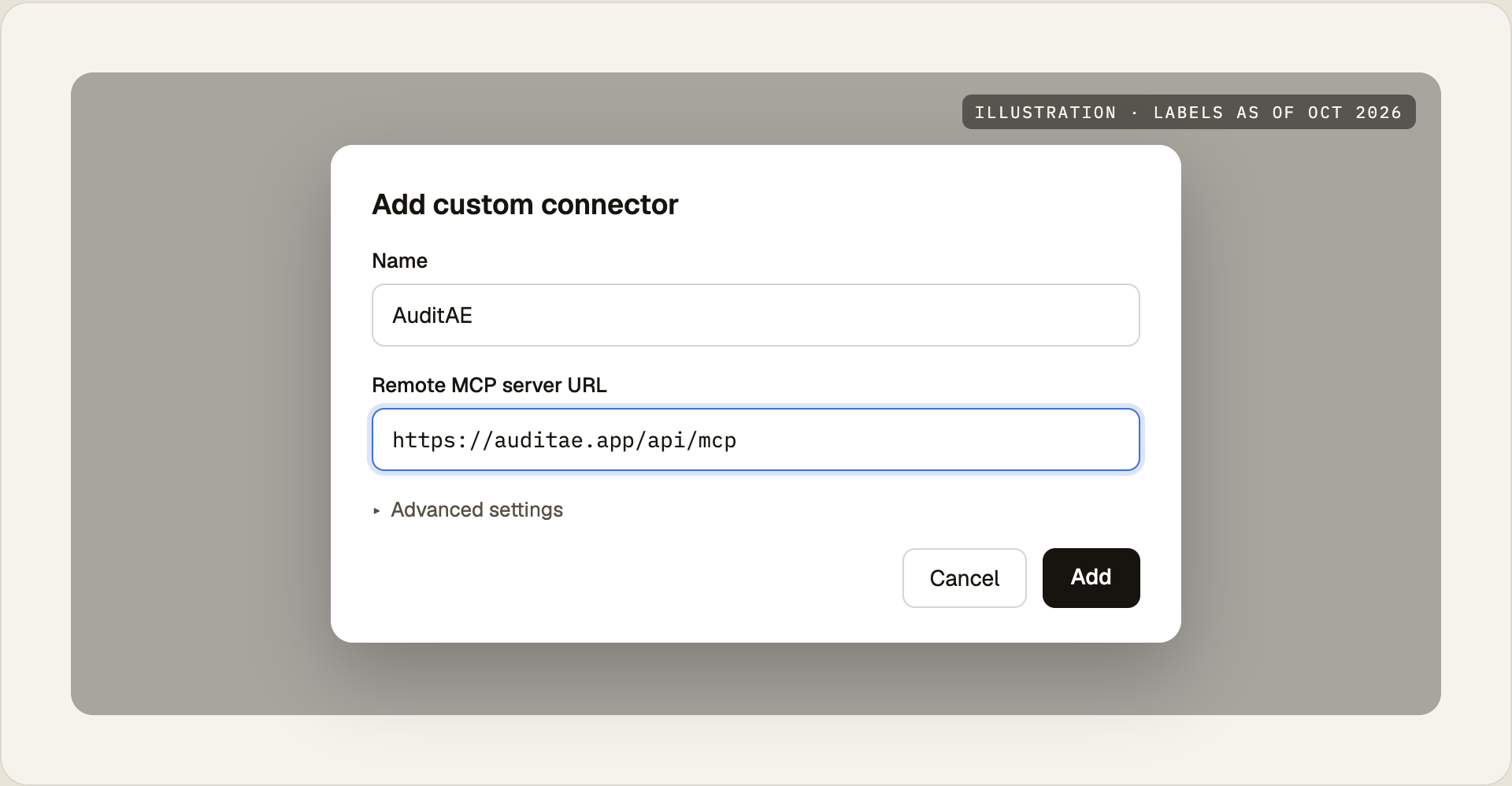
Connectors belong to your Claude account, so the same connector works in the Claude desktop app and on mobile. Anthropic's Free plan allows one custom connector. On Team and Enterprise plans, an Owner adds it under Organization settings → Connectors first, then each member clicks Connect.
Signing in connects your personal AuditAE workspace. If your sites live in a team workspace, use an API key from that workspace in Claude Code or Cursor instead.
ChatGPT
ChatGPT adds outside MCP servers in developer mode. OpenAI has moved and renamed these settings several times (Connectors, then Apps, then Plugins), and which plans get them has changed too, so check OpenAI's developer mode article if your menus look different. At the time of writing:
- Turn on Developer mode in ChatGPT's settings. On Business and Enterprise plans, a workspace admin may need to allow it first.
- Open ChatGPT's plugins page (
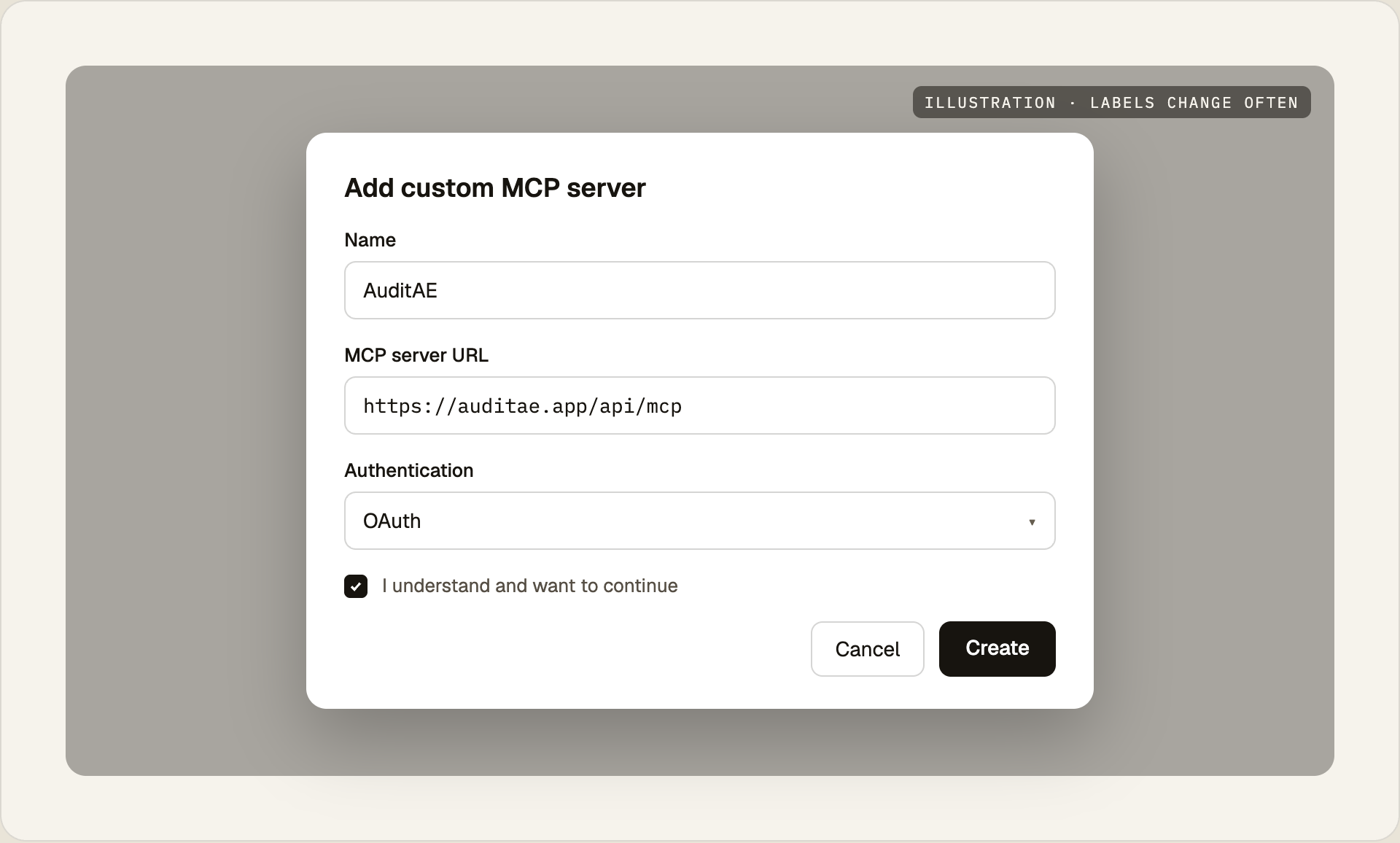
chatgpt.com/plugins), click + and choose Add custom MCP server. - Name it AuditAE, paste
https://auditae.app/api/mcp, and choose OAuth for authentication. - Tick I understand and want to continue, create it, then sign in with your AuditAE account when ChatGPT asks.
- In a new chat, type @ and pick AuditAE, then ask your question.
Claude Code, Cursor and other editors
Create a key in AuditAE under Integrations → API keys (/dashboard/keys). It starts with ae_live_ and is shown once, so copy it before you close the dialog. In Claude Code:
claude mcp add --transport http auditae https://auditae.app/api/mcp \
  --header "Authorization: Bearer ae_live_…"
In Cursor, Windsurf or any client that speaks remote MCP, add the same URL and header to its MCP config:
{
  "mcpServers": {
    "auditae": {
      "url": "https://auditae.app/api/mcp",
      "headers": { "Authorization": "Bearer ae_live_…" }
    }
  }
}
Step 4: Ask your first question
Start with something you can check against the GA4 interface:
How many sessions did yoursite.com get last month, by channel?
The assistant calls query_google_analytics with the sessions metric and the sessionDefaultChannelGroup dimension, and answers with the table. Then ask something that would take several clicks in GA4:
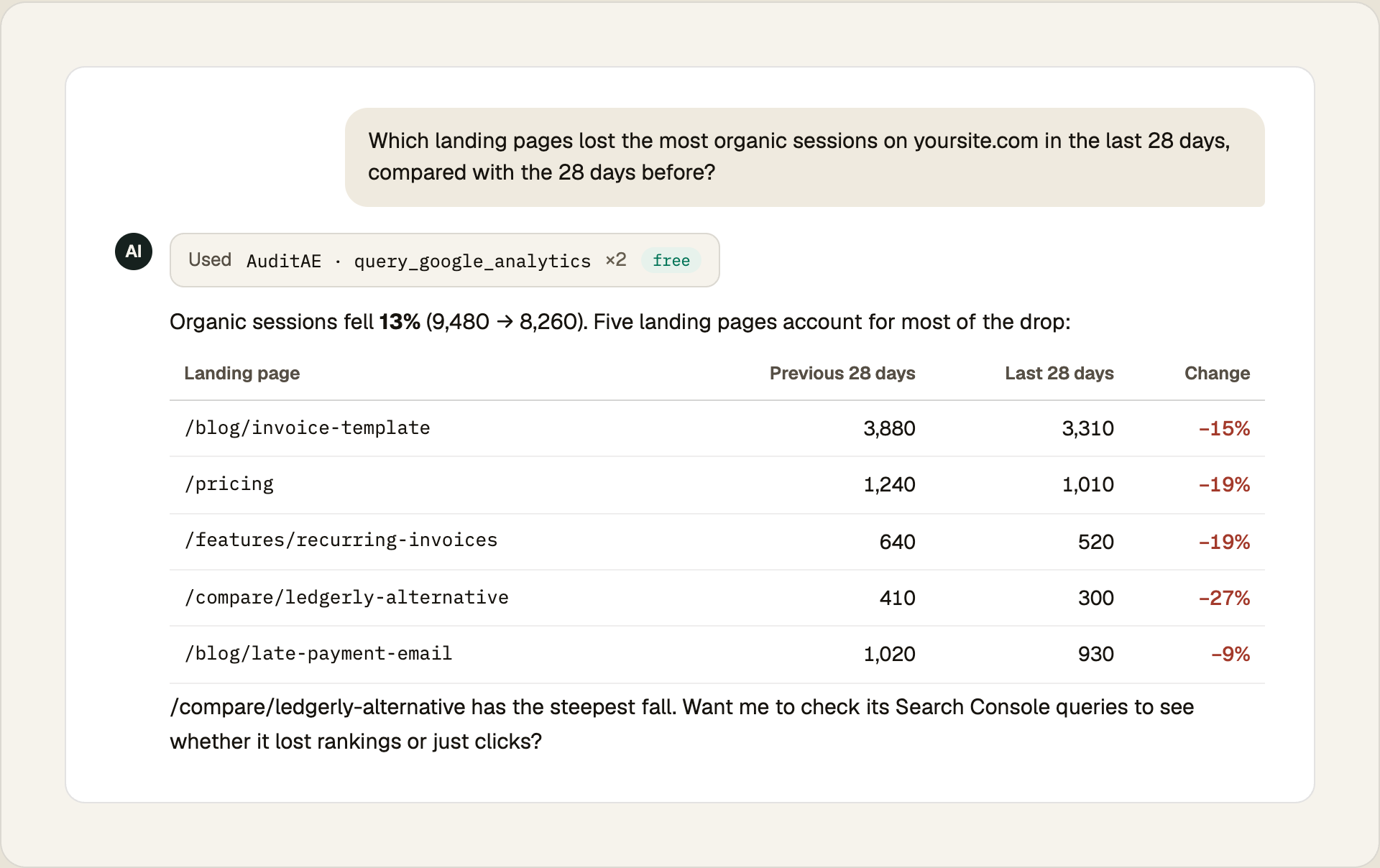
The assistant ran the report twice, once per 28-day window, and did the comparison itself. That's the main advantage over a pasted export: each follow-up question runs a new report, so you can keep narrowing down without leaving the chat.
Questions that work well:
- "Which landing pages lost the most organic sessions in the last 28 days compared with the 28 before?"
- "How did conversions from organic search change month over month, by landing page?"
- "What's the engagement rate on mobile vs desktop for the blog?"
- "Which events fired most on /pricing last week?"
- "Show Search Console queries with over 1,000 impressions and a CTR under 1%. Those titles need rewriting."
- "Which queries lost the most clicks this month? Match them to the landing pages that lost sessions in GA4."
The assistant asks before each tool call by default. Because the Google tools only read, approving them with Always allow is reasonable.
Bonus: see how much traffic AI assistants send you
GA4 records visits from ChatGPT, Perplexity, Gemini, Claude and Copilot as referrals, but they're scattered across the referral report under different source names. get_ai_referral_traffic groups them for you: sessions and engaged sessions per assistant, the change against the period before, and the pages those visits land on.
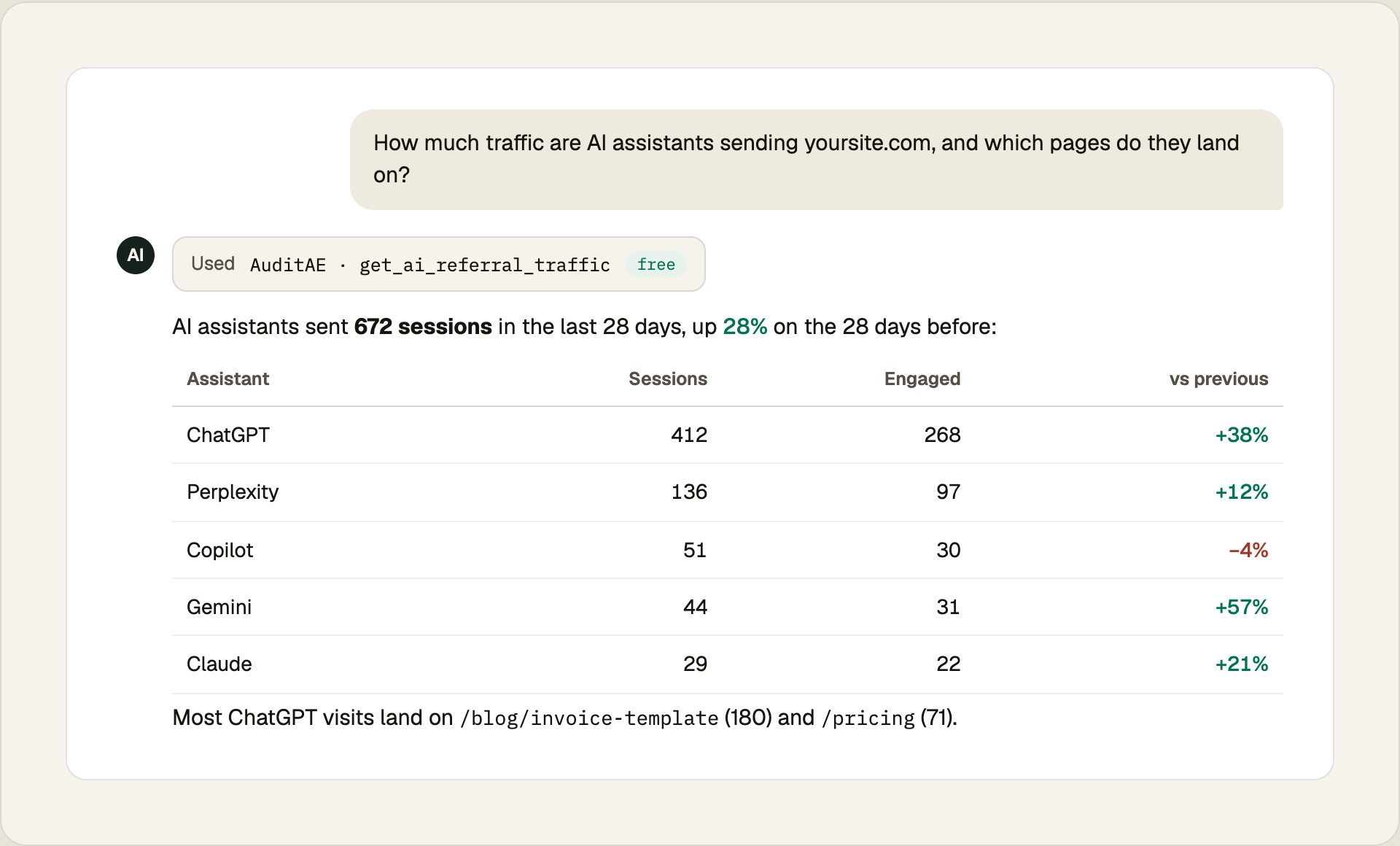
This is where the rest of the server comes in. When a page gets AI traffic, or should and doesn't, the same chat can check whether ChatGPT, Perplexity, Gemini and Google AI Overviews actually cite it (check_brand_citation, 5–12¢ per engine) and ask for the exact edits that would get it cited (get_fix_plan, 50¢). On a WordPress site paired with the free AuditAE plugin, Claude can then make those edits too.
What the Google tools can do
| Tool | What it answers | Cost |
|---|---|---|
| query_google_analytics | Any GA4 report: up to 10 metrics and 9 dimensions, date ranges, filters and sorting | Free |
| query_search_console | Clicks, impressions, CTR and position by query, page, country, device, date or search appearance | Free |
| get_ai_referral_traffic | Sessions from ChatGPT, Perplexity, Gemini, Claude and Copilot, with landing pages and the change vs the period before | Free |
A few details matter in practice:
- Metric and dimension names go to Google as-is. If the assistant guesses a name GA4 doesn't have, Google's error comes back and the assistant fixes it and retries. Asking in plain English works; you don't need to know the API names.
- The data is live. Each call fetches from Google, so it matches what GA4 shows, including GA4's usual processing delay. Reports end yesterday by default, and Search Console's end two days ago, because the most recent days are still incomplete.
- Nothing is changed in Google. The connection uses Google's read-only Analytics and Search Console scopes.
- There's a rate limit. Each key or signed-in account gets 60 calls a minute.
Other ways to connect AI to Google Analytics
AuditAE isn't the only route:
- Google's official Google Analytics MCP server. Google publishes an open-source server with read-only GA4 access through the Admin and Data APIs. It runs on your machine and needs a Google Cloud project, the Analytics APIs enabled and credentials set up. It's the right choice if you want Google's own implementation and are comfortable in Google Cloud.
- Community Search Console servers. Google doesn't publish a Search Console MCP server, but several community projects wrap its API. They also need your own Google Cloud credentials.
- Other hosted connectors. Several reporting tools now offer a hosted GA4 connector for Claude or ChatGPT, usually as part of a monthly subscription.
- Exports. Downloading a GA4 report as CSV and uploading it to ChatGPT or Claude still works for a one-off question, but every follow-up needs a new export.
AuditAE's angle is that the same URL also covers Search Console, AI-referral traffic, AI citation checks and, on WordPress, the fixes, with the Google tools free and the rest priced per call. For a wider comparison, see the best MCP servers for SEO.
Troubleshooting
"analytics_not_connected". The site has no GA4 property picked. Open the site's Settings → Connections, choose the property and click Save selection. The error's detail includes the direct link.
"site_not_found". The domain you asked about isn't a site in the connected workspace. Add it in the dashboard. Remember that signing in from Claude.ai or ChatGPT connects your personal workspace; for sites in a team workspace, use an API key created while that workspace is active.
The GA4 dropdown is empty, or your property isn't in it. The Google account you connected can't see that property. Ask the property's admin to add that Google account in GA4 under Admin → Property access management (Viewer is enough), or reconnect with the Google account that has access.
"Google Analytics access wasn't granted." The Analytics box was unticked on Google's consent screen. Click Reconnect Google in the site's Settings and tick it.
"Google access was revoked." Google stopped accepting the sign-in, for example after a password change or a revoke in your Google account. Click Reconnect Google. Your property picks are kept.
The assistant doesn't list any AuditAE tools. Start a new chat and check the connector is switched on (Claude: + → Connectors; ChatGPT: type @). Assistants load the tool list when they connect, so after a change, reconnect the connector or restart the client.
"ga4_query_failed". Google rejected the report, usually because of an invalid metric or dimension name or an incompatible combination. The message says which; the assistant normally corrects it on the next try.
Where to go next
The Google Analytics & Search Console MCP page lists more prompts and every tool on the server. If your site runs on WordPress, connecting Claude to WordPress lets the same chat make the changes your traffic data points to.
FAQ
Yes, through an MCP server. Claude can't log in to Google Analytics itself, but an MCP server gives it a tool that runs GA4 reports. With AuditAE you connect Google once in the dashboard, pick the GA4 property for your site, and add https://auditae.app/api/mcp to Claude as a custom connector. Claude then answers traffic questions with your real numbers.
Yes, as a custom MCP server in developer mode. Add https://auditae.app/api/mcp, choose OAuth and sign in with your AuditAE account; ChatGPT can then run GA4 and Search Console reports. Which ChatGPT plans can add custom MCP servers has changed several times, so check OpenAI's developer mode help article for yours.
Not with AuditAE. You sign in with Google once in the AuditAE dashboard and AuditAE stores the token encrypted. Google's own open-source GA4 MCP server and most community servers do need a Google Cloud project, enabled APIs and a credentials file on your machine.
The GA4 and Search Console permissions AuditAE asks for are Google's read-only scopes, so the assistant can read reports but can't change properties, users, goals or settings. You can disconnect Google in the dashboard, or revoke AuditAE in your Google account, at any time.
The GA4, Search Console and AI-referral tools are free, and new AuditAE accounts get $5 of credit with no card. You only pay if you also run AI citation checks (5–12¢ per engine) or ask for a fix plan (50¢). Your Claude or ChatGPT plan is separate.
Yes. Each site in your AuditAE workspace points at its own GA4 property and Search Console site, and the assistant picks the right one from the domain you mention. An agency can connect every client's properties with one Google sign-in, as long as that Google account has access to them.
Run the citation report on your own brand.
See which prompts cite you on ChatGPT, Perplexity, Gemini, and Google AI Overviews — the first one’s free, no card.
Aaron is the founder of AuditAE. He has run AI-visibility audits for SEO agencies and in-house brand teams, and writes about how generative answer engines are reshaping the practice of search marketing.
Related reading
- 9 min readHow to Connect Claude to WordPress: Claude.ai, Claude Desktop and Claude CodeA step-by-step guide to connecting Claude to a self-hosted WordPress site over MCP: install a free plugin, pair the site, pick what Claude may change, then connect Claude.ai, Claude Desktop, Claude Code or Cursor. Includes first prompts to try, what it costs and how to fix the common errors.
- 8 min readThe Best MCP Servers for SEO in 2026MCP servers let Claude, ChatGPT and Cursor pull real SEO data and act on it. Here are the seven worth connecting in 2026 (Google Analytics, Search Console, DataForSEO, Semrush, Ahrefs, WordPress and AuditAE), with what each does, what it costs and what it takes to set up.
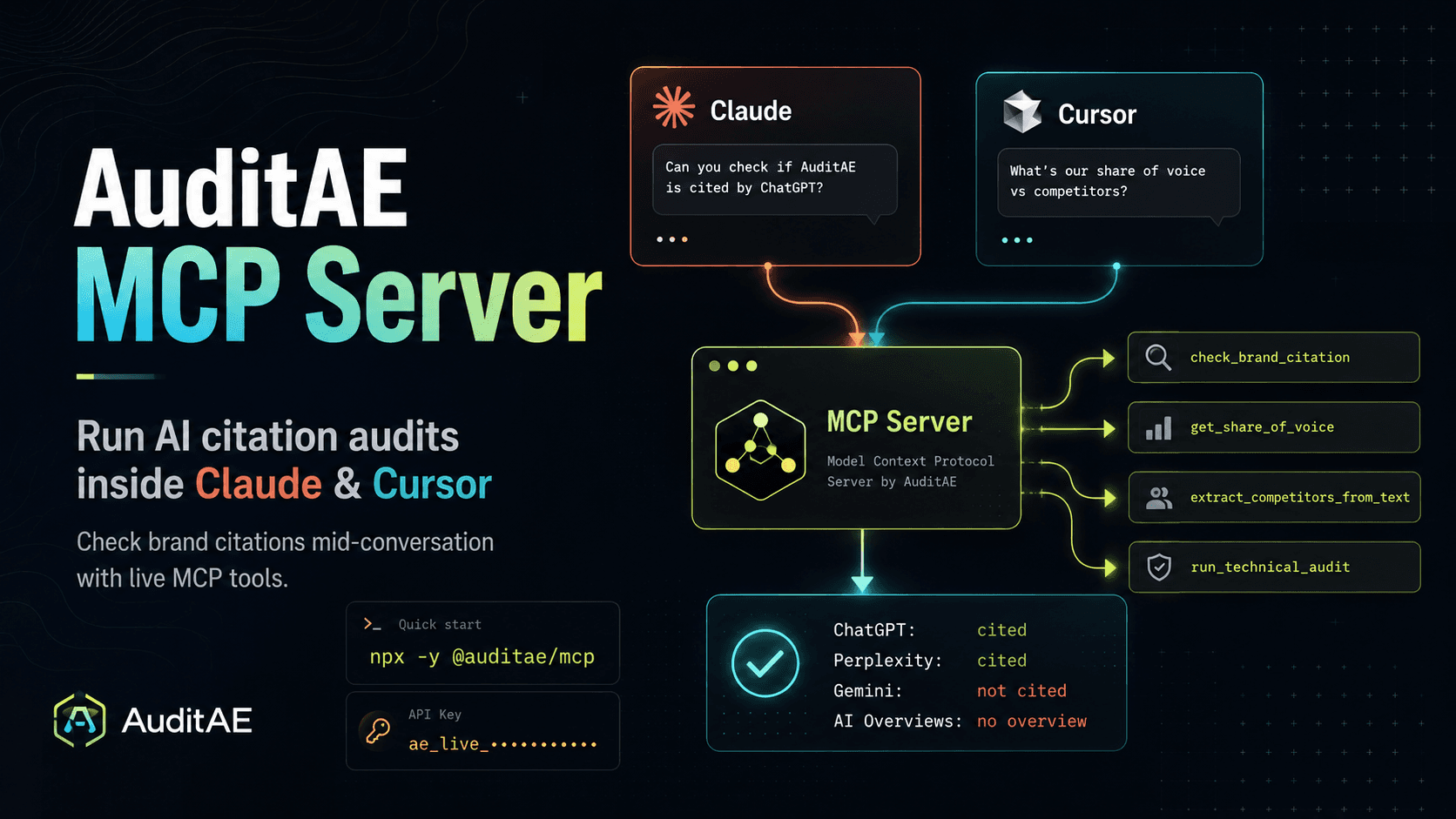
- 8 min readAuditAE MCP Server: Run AI Citation Audits Inside Claude and CursorAuditAE's MCP server lets Claude, Cursor, and any MCP client check whether AI engines cite your brand, mid-conversation. Setup, tools, and pricing inside.