How to Connect Claude to WordPress: Claude.ai, Claude Desktop and Claude Code
A step-by-step guide to connecting Claude to a self-hosted WordPress site over MCP: install a free plugin, pair the site, pick what Claude may change, then connect Claude.ai, Claude Desktop, Claude Code or Cursor. Includes first prompts to try, what it costs and how to fix the common errors.
On this page· 11 sections
Claude can write a blog post in seconds, but on its own it can't put that post on your WordPress site. You copy, paste, fix the formatting and fill in the Yoast fields by hand. Connecting Claude to WordPress removes that step: Claude reads your posts, drafts and edits them, and sets SEO meta and schema itself, within the permissions you give it.
This guide connects a self-hosted WordPress site to Claude.ai, Claude Desktop, Claude Code and Cursor using the free AuditAE plugin and its hosted MCP server. It takes about five minutes, and there is no server to run. If you'd rather host something yourself, the options are covered further down.
How the connection works
Claude talks to outside tools through MCP (Model Context Protocol). An MCP server describes a set of tools, such as "list posts" or "update this post's meta description", and Claude calls them when your request needs them.
Here the pieces are:
- The AuditAE plugin on your WordPress site. It adds a small REST API that only answers requests carrying your site's own token.
- The AuditAE MCP server at
https://auditae.app/api/mcp. It holds that token (encrypted) and turns Claude's tool calls into plugin requests. - Claude, connected to that URL either by signing in (Claude.ai) or with an API key (Claude Code, Cursor and Claude Desktop's config file).
What you need
- A WordPress site you can install plugins on, served over HTTPS
- An admin login for wp-admin
- An AuditAE account (free; new accounts get $5 of credit, no card)
- Claude.ai, the Claude desktop app, Claude Code or Cursor
Step 1: Install the AuditAE WordPress plugin and pair your site
- In wp-admin, go to Plugins → Add New, search for AuditAE, then install and activate it. Installing from WordPress.org means updates show up in wp-admin; click Enable auto-updates next to it on the Plugins screen to have them install automatically.
- Go to Settings → AuditAE, open the Connect tab and click Generate pairing code. You get an 8-character code that works once and expires after 10 minutes.
- In AuditAE, open auditae.app/dashboard/wp/connect, paste the code and your site URL, and submit.
The wp-admin page refreshes when the site connects. AuditAE swaps the code for a long-lived token and stores it encrypted, so the code is useless afterwards.
Step 2: Choose what Claude can change
Pairing gives two permissions to start with: read and draft. Claude can look at anything and create or update drafts, but it can't touch live content. The other two are switches on the same Connect tab:
| Permission | What it allows | On by default |
|---|---|---|
| read | Read posts, pages, settings and status | Yes |
| draft | Create and update drafts | Yes |
| publish | Publish, schedule, and edit published content | No |
| write_seo | Yoast / Rank Math meta, schema, llms.txt | No |
Most people turn on write_seo first, because that is where Claude saves the most clicking. Leave publish off until you've watched a few drafts come through. AuditAE checks these permissions before it sends a request, and the plugin checks them again when the request arrives, so Claude can't give itself more access.
Step 3: Connect Claude
Pick the client you use. They all reach the same server and the same tools.
Claude.ai (web, desktop app and mobile)
This is the simplest route: no key and no config file.
- In Claude, go to Customize → Connectors and click Add custom connector.
- Name it AuditAE and paste
https://auditae.app/api/mcpas the server URL. - If the dialog asks how to authenticate, choose to sign in, and leave the OAuth client on Use Claude's published identity.
- Click Add, then Connect, and sign in with your AuditAE account.
- In a new chat, open the + menu → Connectors and make sure AuditAE is switched on.
Connectors belong to your Claude account, so the same connector also works in the Claude desktop app and on mobile. On Team and Enterprise plans, an Owner adds the connector under Organization settings → Connectors first, and then each member clicks Connect. Anthropic's Free plan allows one custom connector.
Signing in connects your personal AuditAE workspace. If you paired the site in a team workspace, use an API key from that workspace in one of the clients below.
Claude Code
Create a key in AuditAE under Integrations → API keys (/dashboard/keys) with Create key. It starts with ae_live_ and is shown once, so copy it before you close the dialog. Then run:
claude mcp add --transport http auditae https://auditae.app/api/mcp \
  --header "Authorization: Bearer ae_live_…"
Add --scope user to make it available in every project, not only the current one. Run /mcp inside Claude Code to check that AuditAE shows as connected.
Claude Desktop (WordPress MCP via mcp-remote)
If you'd rather use a key than the Claude.ai connector, for example because the site is in a team workspace, Claude Desktop can reach the server through the mcp-remote bridge. It needs Node.js installed. Open Settings → Developer → Edit Config and add:
{
  "mcpServers": {
    "auditae": {
      "command": "npx",
      "args": [
        "-y", "mcp-remote", "https://auditae.app/api/mcp",
        "--header", "Authorization:${AUTH_HEADER}"
      ],
      "env": { "AUTH_HEADER": "Bearer ae_live_…" }
    }
  }
}
The header goes through an environment variable because Claude Desktop splits arguments on spaces. Restart the app after saving.
Cursor, Windsurf and other editors
Any client that speaks remote MCP with custom headers works with the same block. In Cursor it goes in .cursor/mcp.json:
{
  "mcpServers": {
    "auditae": {
      "url": "https://auditae.app/api/mcp",
      "headers": { "Authorization": "Bearer ae_live_…" }
    }
  }
}
Step 4: Test it with a first task
Start with something that only reads:
List my WordPress sites and tell me which permissions each one has.
Claude calls wp_list_sites and shows your site with its permissions. Reads are free, so it costs nothing to look around. Then try real work:
- "Write a new draft post answering 'How long does X take?' using facts from my existing pages. Don't publish it."
- "Check my 20 most recent posts for a missing meta description and write one for each. Show me the list before you save anything." (Saving needs write_seo.)
- "Add FAQ schema to the pricing page using the questions already on it." (Also needs write_seo.)
With the default read and draft permissions, Claude can create and edit drafts but not change a published post. Editing a live post, such as rewriting its intro, needs publish.
Claude asks before each tool call by default. Approving read tools with Always allow is reasonable; keep approving writes one at a time until you trust the workflow. In Claude.ai you can also set any single tool to Blocked under Customize → Connectors, for example wp_trash_post if Claude should never move posts to the Trash.
What Claude can do on your site
The server's WordPress tools fall into six groups:
| Group | Tools | Cost |
|---|---|---|
| Sites | wp_list_sites, wp_site_status | Free |
| Posts and pages | list, get, create, update, trash | Reads free, writes 5¢ |
| SEO meta | get and set post SEO (Yoast or Rank Math) and Yoast site settings | Reads free, writes 5¢ |
| Schema | FAQ, per-post and Organization schema, plus a probe of what's already on the page | Reads free, writes 5¢ |
| llms.txt | get, set, reset | Reads free, writes 5¢ |
| Page composer | read a page's blocks, design a page | Read free, design 25¢ |
A few details matter in practice:
- Writes go into your SEO plugin's own fields. Titles, descriptions, focus keywords and canonicals land in Yoast or Rank Math, whichever is active. AuditAE never prints its own title, meta or canonical tags, so nothing gets duplicated.
- Every edit returns
previous_state. Claude gets back what it replaced, so it can put a change back without a database restore. Trashing a post returns its previous status instead, and trashed posts can be restored from the Trash for about 30 days. Reads and writes are also listed under the site's recent actions in the AuditAE dashboard. - Elementor pages are edited in place. Claude reads Elementor's widget data, including Elementor Pro widgets, and changes text with exact find-and-replace edits. Replacing a whole Elementor page body is refused, so the layout survives. See Elementor MCP for more.
- You only pay for changes. A write is charged when it succeeds and changes something. A write that changes nothing, or that's refused for a missing permission or low credit, costs nothing. A 40-post meta-description pass is about $2.
- There's a rate limit. Each key or signed-in account gets 60 calls a minute, so a runaway loop stops there.
The same server also checks whether ChatGPT, Perplexity, Gemini and Google AI Overviews cite your site, and get_fix_plan (50¢) returns the exact edits for a page. Claude can find the gap and fix it in the same chat. The full tool list and prices are on the WordPress MCP page.
Other ways to connect Claude to WordPress
AuditAE isn't the only route, and it isn't the right one for everyone:
- WordPress.com's Claude connector. WordPress.com has its own connector on its paid plans, and self-hosted sites can use it through Jetpack with a Jetpack AI or Jetpack Complete plan.
- The WordPress MCP adapter and Automattic's wordpress-mcp. These are free, self-hosted developer tools that expose WordPress's REST or Abilities API. They're the better fit if you want general-purpose REST access for development and are happy to run and secure the server yourself.
- Other plugin-based connectors. Several plugins now offer an MCP endpoint built on WordPress application passwords.
AuditAE is narrower. It's a hosted URL with nothing to run, with per-site permissions, previous-state returns on edits, Yoast and Rank Math awareness, and AI-search data in the same server. It's built for SEO and content work, not for managing plugins or users. For a wider comparison, see the best MCP servers for SEO.
Troubleshooting
Claude doesn't list any wp_ tools. Start a new chat and check that the connector is switched on in + → Connectors. Clients load the tool list when they connect, so after a change, reconnect the connector or restart the client.
wp_list_sites returns no sites. The key or sign-in belongs to a different workspace from the one you paired. Claude.ai sign-in uses your personal workspace; for a team workspace, create the key while that workspace is active.
"Wrong number of segments" or another 401/403 from the site. A JWT authentication plugin on your site is rejecting AuditAE's token because it isn't a JWT. AuditAE handles this automatically by resending the request in its own header. If the error persists, update the AuditAE plugin to the latest version under Plugins. If a JWT, security or REST-restriction plugin is still blocking it, add /wp-json/auditae/v1/ to that plugin's allowed (whitelisted) endpoints.
"The connection lacks the 'write_seo' capability." Turn the permission on under Settings → AuditAE → Connect and ask again. AuditAE re-reads the permissions before it refuses, so you don't need to re-pair.
The pairing code doesn't work. Codes expire after 10 minutes and work once; generate a new one. A code is also cancelled after too many wrong attempts. The plugin also refuses to pair over plain HTTP, so the site must be on HTTPS.
The site shows as unreachable. The last call to the site failed (a host outage, a firewall, the plugin deactivated). Ask Claude to check the site's status. When the plugin answers, the connection is restored and writes work again.
The site answered, but not with JSON. This usually means PHP warnings were printed before the response. The write may have gone through, so check the post in wp-admin before you ask Claude to retry.
Where to go next
Once Claude is connected, the useful work is deciding what to change. The free AuditAE plugin scores how readable your site is to AI search, and the WordPress MCP page has bulk-edit prompts people actually run. If you also want Search Console and GA4 in the same chat, the server answers those questions too: see Google Analytics & Search Console MCP.
FAQ
Yes, through an MCP server. Claude can't log in to wp-admin itself, but an MCP server gives it tools such as list posts, update a post and set SEO meta. With AuditAE you install a free plugin, pair the site, and add https://auditae.app/api/mcp to Claude as a custom connector (Claude.ai) or with an API key (Claude Code, Cursor, Claude Desktop).
No. Anthropic offers custom connectors on Free, Pro, Max, Team and Enterprise plans; the Free plan is limited to one custom connector. On Team and Enterprise plans an Owner adds the connector for the organization first, then each member connects.
It's as safe as the permissions you give it. A new AuditAE pairing can only read and create drafts; publishing and SEO writes are separate switches in wp-admin, and both AuditAE and the plugin check them on every call. Every write is logged, edits return the values they replaced, the site token is stored encrypted, and you can disconnect from Settings → AuditAE at any time.
Yes. The SEO tools write titles, meta descriptions, focus keywords and canonicals into whichever of Yoast or Rank Math is active, and the plugin never adds a second set of SEO tags. SEO writes need the write_seo permission.
Yes, with plugin 0.29.0 or later. Claude reads Elementor pages from Elementor's own widget data and edits their text with exact find-and-replace edits; replacing the whole page body is refused on Elementor pages, so the layout stays intact.
The plugin and the connection are free, and every read is free. Writes cost 5¢ each and are charged only when they succeed and change something; the page composer is 25¢. New AuditAE accounts get $5 of credit with no card. Your Claude plan is separate.
Claude connects to WordPress through MCP rather than a plugin of its own, so what people call a Claude WordPress plugin is a plugin that exposes your site to Claude over MCP. The free AuditAE plugin is one: install it from WordPress.org, pair the site, and add https://auditae.app/api/mcp to Claude. There is no server to host.
Yes. WordPress.com has its own Claude connector on its paid plans (and on free sites for their first 30 days), and self-hosted sites can use it through Jetpack with a Jetpack AI or Jetpack Complete plan. AuditAE works on any WordPress site where you can install plugins, which covers self-hosted WordPress and managed hosts.
Run the citation report on your own brand.
See which prompts cite you on ChatGPT, Perplexity, Gemini, and Google AI Overviews — the first one’s free, no card.
Aaron is the founder of AuditAE. He has run AI-visibility audits for SEO agencies and in-house brand teams, and writes about how generative answer engines are reshaping the practice of search marketing.
Related reading
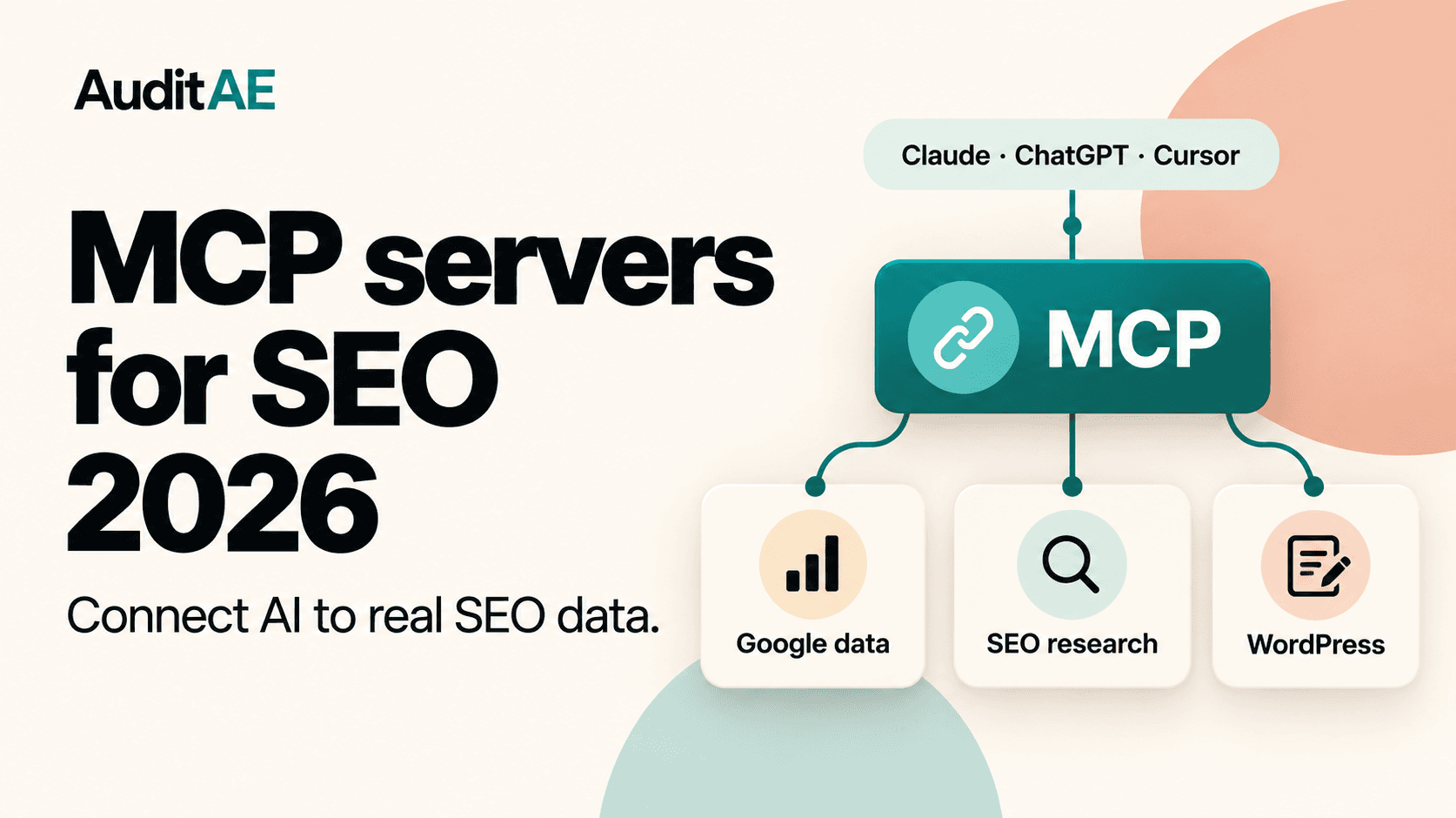
- 8 min readThe Best MCP Servers for SEO in 2026MCP servers let Claude, ChatGPT and Cursor pull real SEO data and act on it. Here are the seven worth connecting in 2026 — Google Analytics, Search Console, DataForSEO, Semrush, Ahrefs, WordPress and AuditAE — with what each does, what it costs and what it takes to set up.
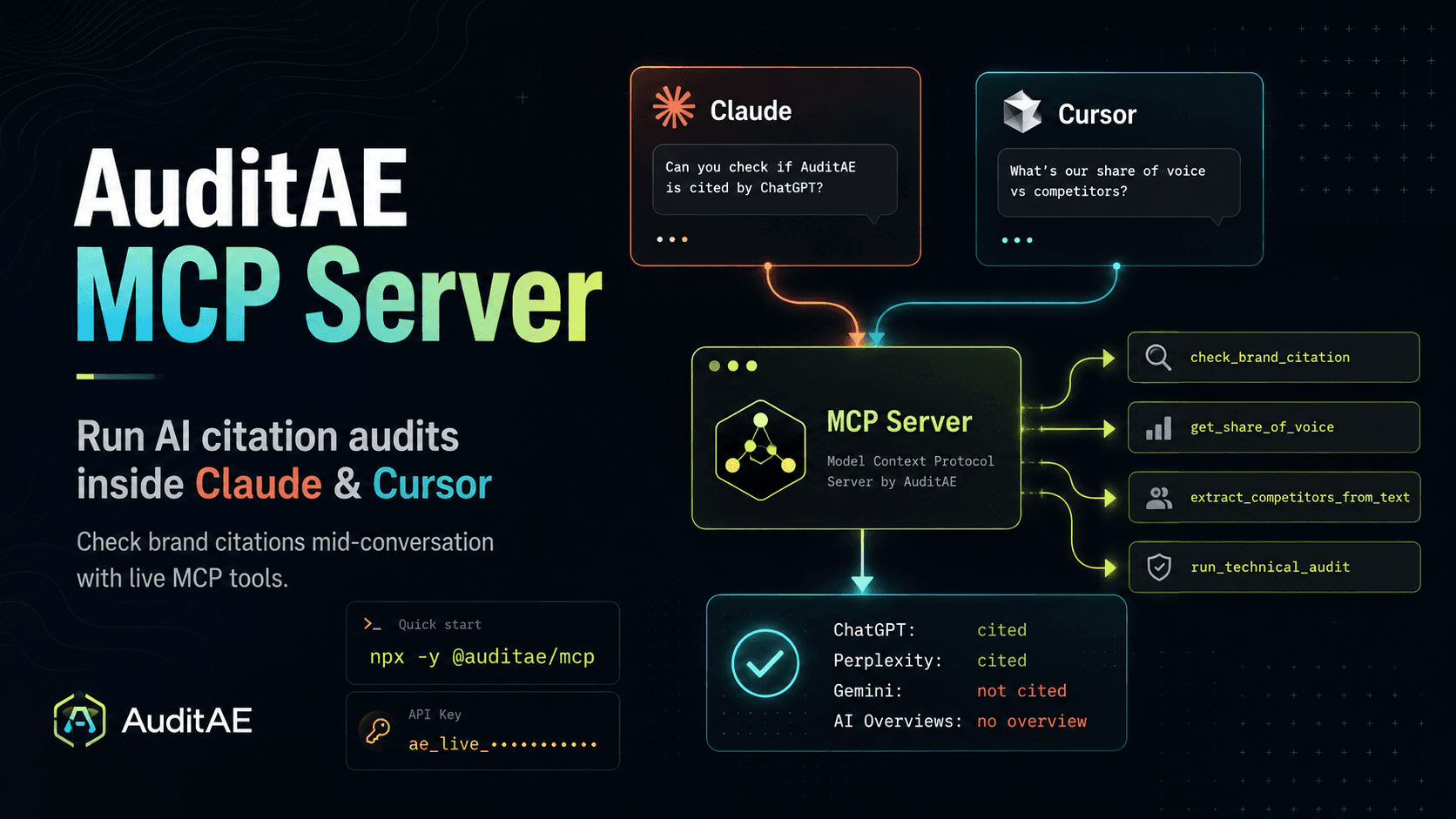
- 8 min readAuditAE MCP Server: Run AI Citation Audits Inside Claude and CursorAuditAE's MCP server lets Claude, Cursor, and any MCP client check whether AI engines cite your brand — mid-conversation. Setup, tools, and pricing inside.
- 10 min readHow to Improve Brand Visibility in AI Search Engines: 8 Fixes You Can Ship This MonthAI engines already have an opinion about your brand. Here is how to check what it is, and the eight fixes, in order, that change it — with the WordPress path for each one.